
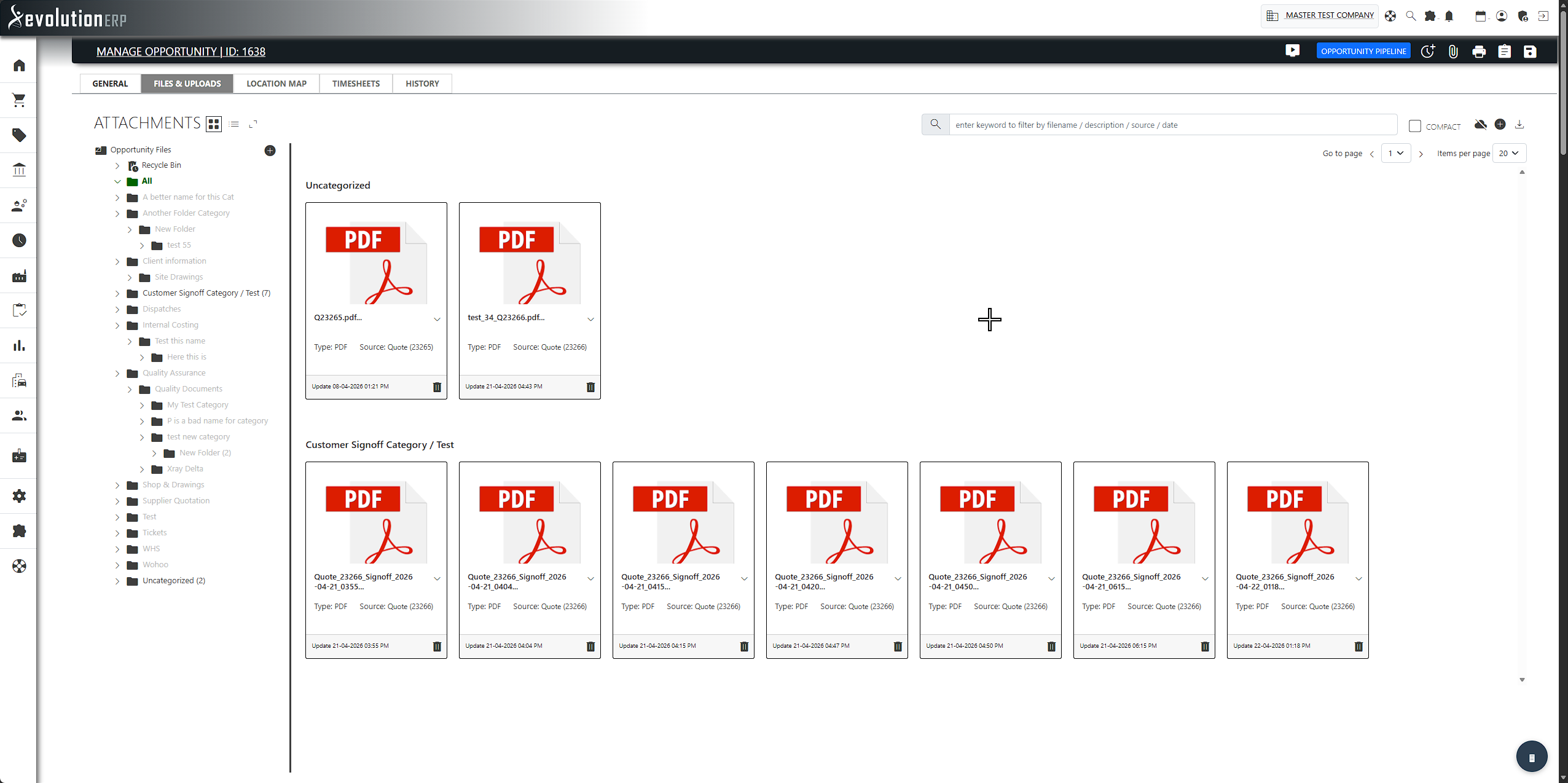
Evolution has a single, shared attachment system that appears in many places throughout the application. Wherever you see a Files or Attachments area — on a project, a quote, an invoice, an asset, a contact and more — you are using the same tool, so it always looks and behaves the same way.
Files are attached to whatever record you are looking at (a specific project, quote line, asset and so on). You can drag-and-drop files to upload them, give each file a name, category and description, preview or download them, and reuse a file that has already been uploaded elsewhere.
Where You’ll Find It
The same attachment area is built into screens right across Evolution. You’ll most commonly meet it on:
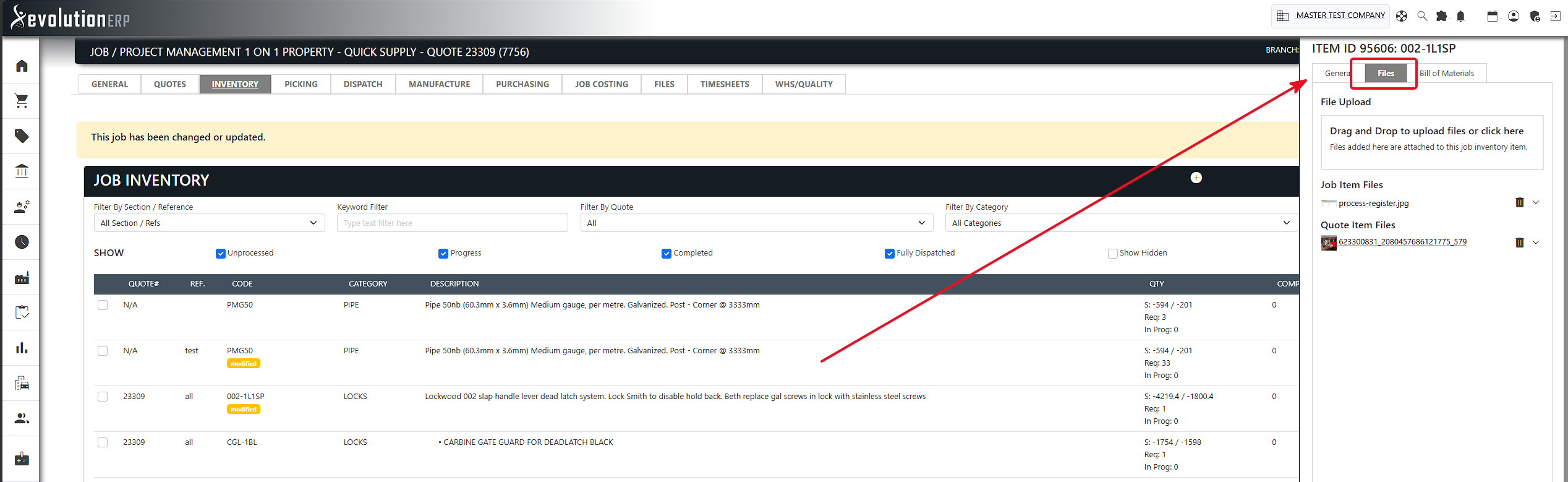
- Projects — and each project inventory line (in the item pop-up’s Files tab).
- Quotes — and each quote line item (in the item pop-up’s Files tab).
- Opportunities and Leads.
- Invoices.
- Purchasing and Inventory items.
- Assets (and asset maintenance).
- Contacts / Account Files.
- Field service instructions, support tickets and defects.
Uploading Files
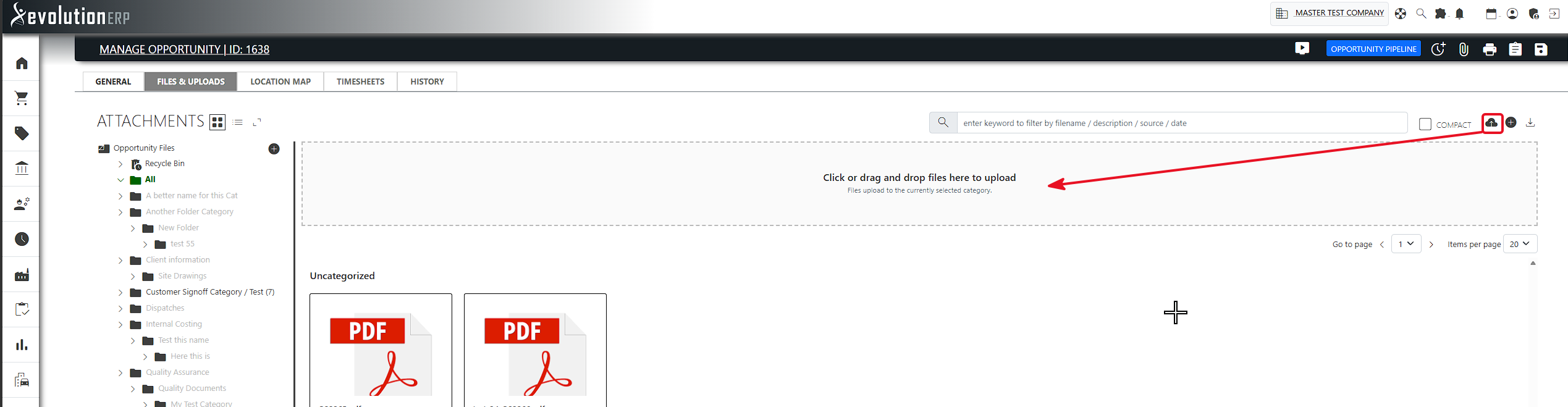
To add files, find the upload box (marked “Drag and Drop to upload files or click here”) and either:
- Drag one or more files from your computer straight onto the box, or
- Click the box to open your computer’s file picker.
You can upload several files at once. Each file uploads in the background and appears in the list below the box as soon as it finishes — there is no need to save or reload the page.
.php, .html, .sh, .exe-style
scripts) are rejected. Everyday business files — PDFs, images, Office documents,
emails, CSVs and so on — upload normally.
Working With Attached Files
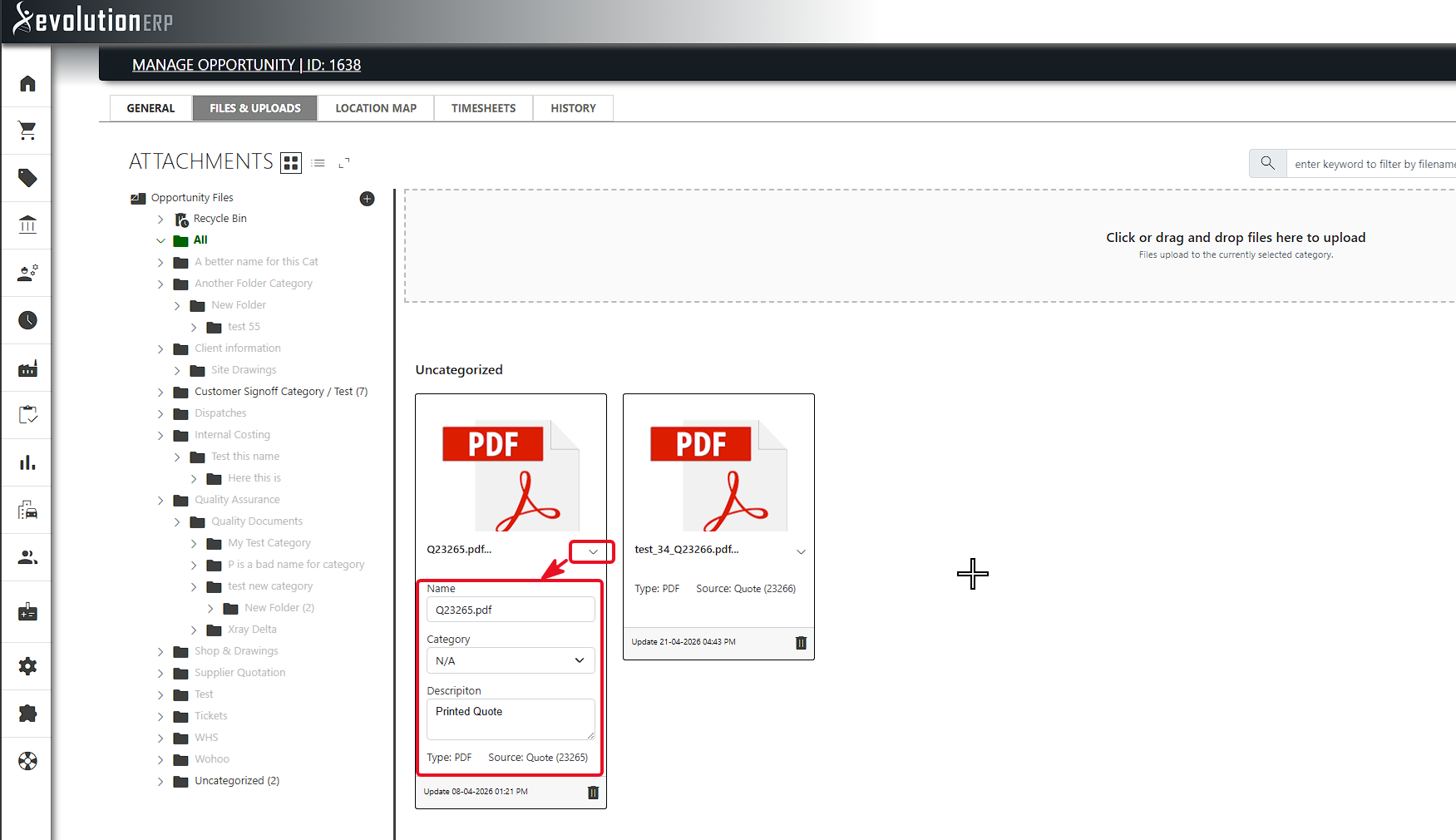
Each attached file is shown as a row with a thumbnail (images get a real preview; other file types show an icon for their format), the file name, and a couple of actions:
- Open / download — click the file name to open it in a new tab.
- Delete — click the delete icon to remove the file.
- Expand — click the chevron icon to reveal the file’s editable details.
When you expand a file you can edit, and each change saves automatically:
- Name — a friendlier label than the original file name.
- Category — file the document under one of your categories (see below).
- Description — free-text notes about the file.
Categories
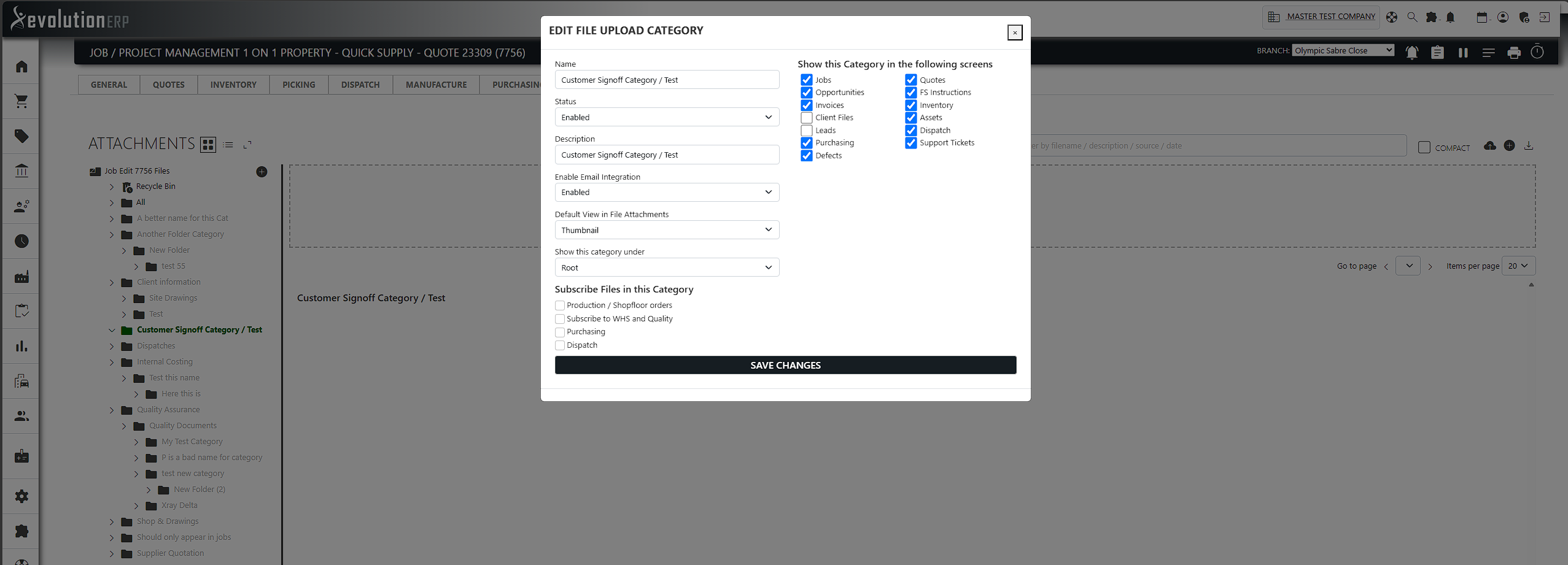
Categories let you group attachments by purpose — for example Certificates, Site Photos, Signed Documents or Drawings. Assigning a file to a category makes long file lists much easier to scan and filter.
Categories are set up by an administrator, who also chooses which screens each category should appear on. That means a job-focused category and an asset-focused category can each show up only where they’re relevant, keeping the category drop-down short and meaningful on every screen.
Linked Files From Related Records
Many records are connected — a project comes from a quote, a project line comes from a quote line, and so on. To save you hunting across screens, an attachment area often shows the files from those linked records as well as its own.
- A project shows its own files plus files from the originating quote, opportunity and the related quote line items.
- A project inventory line shows its own files plus the files attached to the quote line it was created from.
- A quote shows files from its opportunity and its line items.
New files you upload always attach to the record you’re currently on. The linked files are shown for reference so nothing gets lost as work moves from a quote through to a project.
Reusing an Existing File
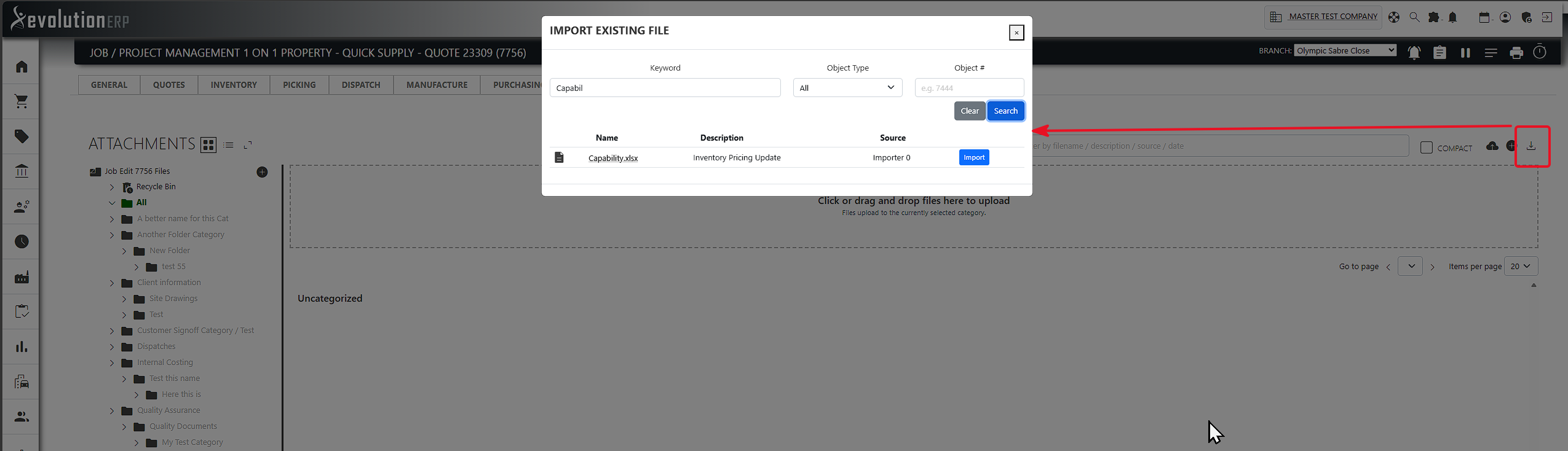
If a document has already been uploaded somewhere else in Evolution, you don’t need to upload it again. Use Import Existing File to search all uploaded files by keyword, object type (project, quote, asset, …) or object number, then attach the one you want to the current record.
Who Can See and Add Files
Access to attachments follows the same module permissions as the record they belong to. For example, seeing or adding files on a project requires project costing access; files on a quote require sales access; invoice files require accounts receivable access, and so on. If you can open the record, you can generally work with its files. Administrators can access everything.
Frequently Asked Questions
Do I have to click Save after uploading?
No. Files upload as soon as you drop or select them, and edits to a file’s name, category or description save automatically.
Can I upload more than one file at a time?
Yes — drag several files onto the box together, or multi-select them in the file picker.
Why can’t I upload a particular file?
Executable and script file types are blocked for security. Rename or repackage the content into an allowed format (for example, a PDF or a zipped archive) if you need to attach it.
A file I attached to a quote also shows on the project — is that a duplicate?
No. It’s the same file, shown on the project for convenience because the project was created from that quote. Deleting it from its original record removes it everywhere.