
When goods that went out on a project come back — over-ordered, wrong size, not needed on site — record them as a return. The stock goes back on the shelf, the project shows less sent, and the return is kept in the project’s history with who returned it and why.
Open the project, go to the Inventory tab and click Return Goods. The button shows once the project has at least one committed dispatch, or has had goods returned, for anyone who can open projects.
How Much Can Come Back
Each line can return what its committed dispatches sent, less what has already been returned. Goods on a dispatch that is still a draft or awaiting delivery have not left, so they cannot be returned — take them off the dispatch instead.
Once everything on a line has come back, the line shows All returned and cannot be returned again. A return that would bring back more than was sent is refused, so the same goods cannot be returned twice.
Returning Goods
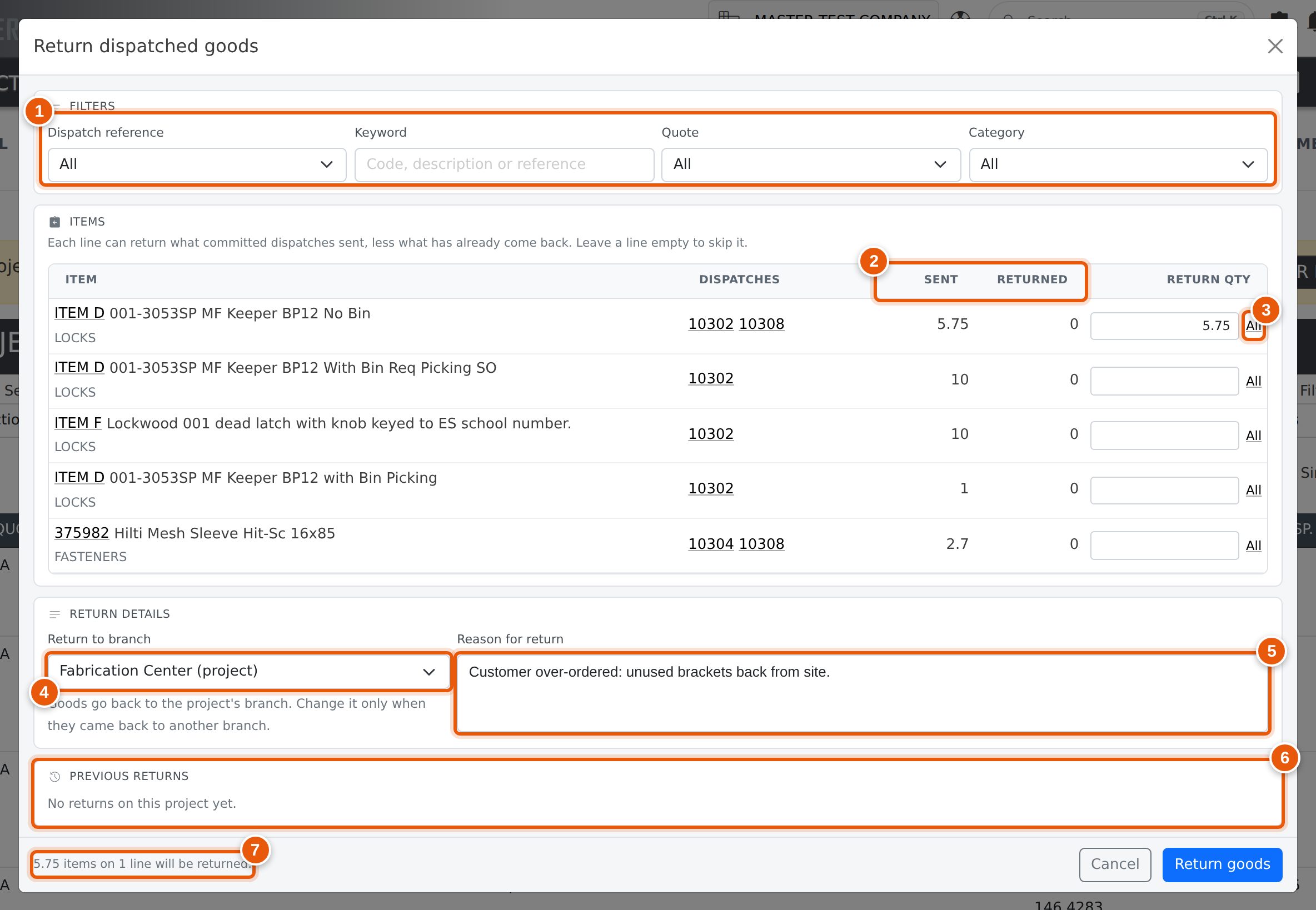
- Filters — narrow a long list by dispatch reference, keyword (code, description or reference), quote or category.
- Sent and Returned — how much the committed dispatches sent, and how much of that has already come back. The numbers under Dispatches open each dispatch.
- Return qty and All — type the quantity that came back, or click All to fill in everything that can still be returned. Leave a line empty to skip it. You can return part of a line and the rest later.
- Return to branch — shown when your company has more than one branch. It starts on the project’s branch; see Which Branch the Goods Go Back To.
- Reason for return — why the goods came back. It is saved on every line of this return.
- Previous returns — every earlier return on the project: date, item, quantity, branch, bin, who returned it and the reason.
- The summary counts what will be returned before you click Return goods.
Click Return goods. If a quantity is more than the line can return, or no line has a quantity, nothing is saved and the line is marked in red with the reason. The check runs again when the return is saved, so a return that someone else recorded a moment before you is counted too.
Cancel clears what you entered. If you have typed anything, you are asked first.
Which Branch the Goods Go Back To
A return belongs to the project, not to any one dispatch. The goods go back into the stock of the project’s branch, however many dispatches they went out on.
If the goods came back to a different branch — for example, sent from one yard and dropped off at another — choose that branch in Return to branch before you click Return goods. The stock goes into that branch instead, and the project’s history notes that it was not the project’s branch. Leave it on the project’s branch for every other return.
Staging Bins
If your company uses staging bins for the branch the goods are going back to, each line you return opens a Staging bins list underneath it. Choose the bin the goods went back to and its quantity; use Add bin to split the line across several bins. The bins must be in that branch, and their quantities must add up to the line’s return quantity.
Changing Return to branch clears the bins you chose, because they belong to the old branch. Without staging bins, the goods go back into the branch’s stock with no bin.
Returning From the Mobile App
Staff in the field can return goods from the project in the mobile app. Each item card shows Sent, Returned and Can return, and the app applies the same limits: it will not return more than Can return, and if any line in a return is refused, none of it is saved. A reason can be given for each item or one for the whole return.
When your company has more than one branch, Return to branch sits above the items and starts on the project’s branch. Changing it reloads the list, so choose the branch before marking any items.
What Happens Afterwards
- The goods are back in stock, in the branch (or staging bins) they were returned to.
- The project’s sent quantity drops by the amount returned. The dispatches themselves are not changed.
- The project’s History records each return, and the reason, under your name.
- The returned quantity is available on the project again. If the goods need to go out again, pick and dispatch them as usual.
- A committed dispatch the return depends on can no longer be un-committed.
- A return does not raise a credit note. If the customer was invoiced for the goods, raise a credit note for them separately.
If Something Goes Wrong
“You can return at most …”
The quantity is more than is left to return on that line. Check Previous returns: the goods may already have been returned, by you or someone else.
“Bin … is not in …”
A staging bin you chose belongs to another branch. Choose a bin in the branch shown in Return to branch, or change the branch.
There is no Return Goods button
The project has no committed dispatches and no earlier returns, or you do not have access to projects. Goods on a dispatch that has not been committed have not left stock. If everything sent has already come back, the button still opens the window so you can see Previous returns, but there is nothing left to return.
A dispatch can’t be un-committed
Un-committing a dispatch puts everything on it back into stock. Goods that have already been returned are back in stock, so un-committing the dispatch that covers them would count them twice. While a return depends on a dispatch, its Un-Commit button is greyed out and the dispatch names the items and quantities returned. The return stays on the project. If goods need to go out again, raise a new dispatch from the project.
I returned the wrong quantity
A return cannot be undone from this window. Contact support with the project number and the line from Previous returns.