
Every stocked item in Evolution carries a live picture of its stock position: how much is physically on hand, how much is already spoken for by projects (demand), how much of that demand has been reserved against stock (allocated), and what is still left to fill (unallocated). This page explains how those figures are worked out — including a recent improvement that means the components a project needs to build an item are now counted too.
The Stock Figures Explained
Open an item from Inventory → Items to see its stock summary.
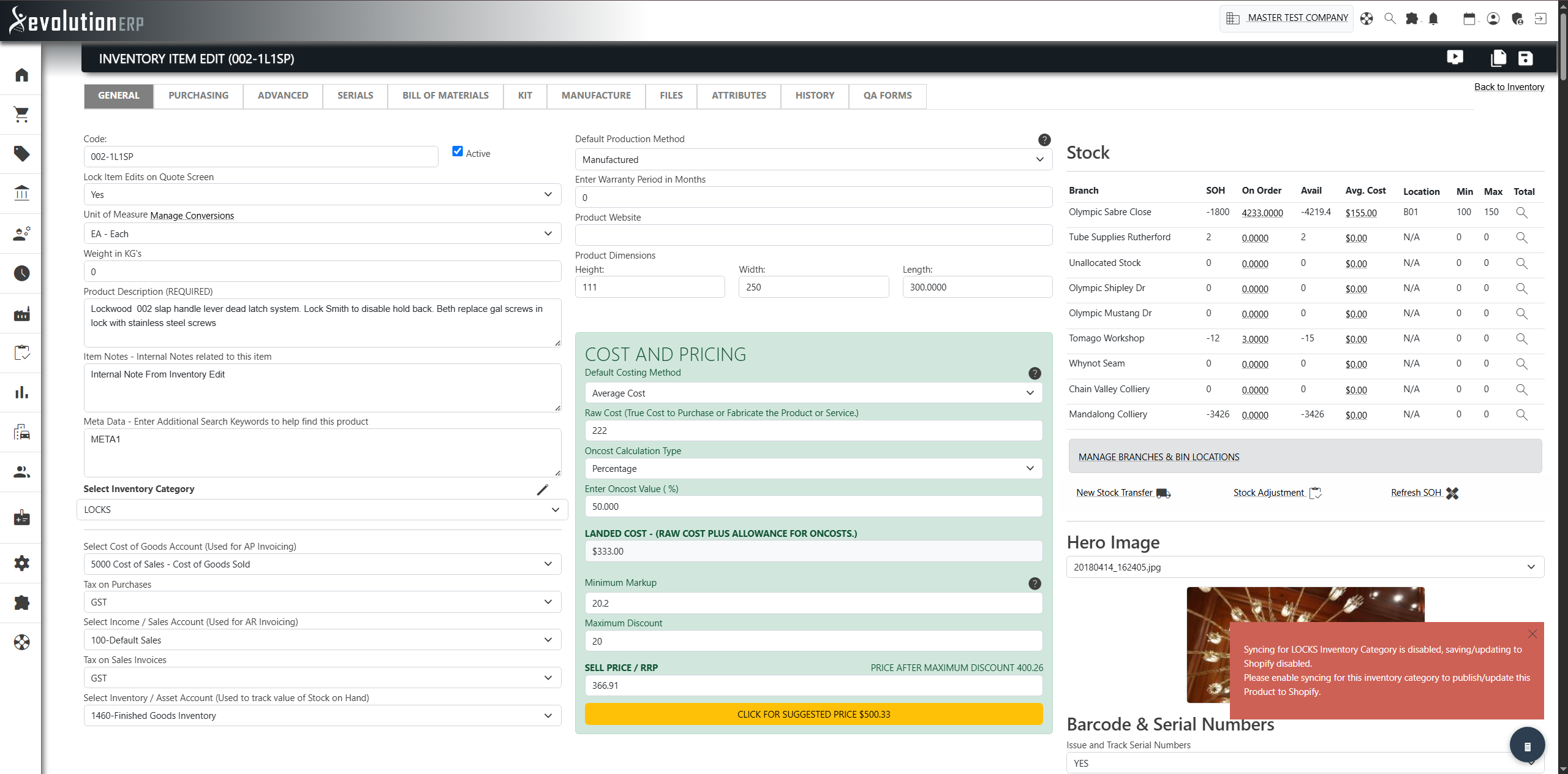
| Figure | What it means |
|---|---|
| Stock on Hand (SOH) | The physical quantity currently in the branch. |
| Demand | Quantity sitting on projects that is yet to be dispatched. This is what your customers and projects are asking for. |
| Allocated | The portion of demand that has been reserved against available stock, so it can’t be promised twice. |
| Available | Stock on Hand less what is already allocated — what you can freely commit to new work. |
What’s New: Bill of Materials Demand from Projects
Previously, demand and allocations only counted an item when it appeared directly on a project line. If an item was instead a component inside a manufactured or kit item on a project — listed in that item’s Bill of Materials (BOM) — the demand for that component was not reflected on its stock figures.
Evolution now looks through the parent item to its Bill of Materials. When a manufactured item is placed on a project, each component in its BOM now generates demand — and is allocated against stock — automatically. This gives a far more accurate view of what you actually need to have on hand to fulfil your projects, and feeds directly into restocking and purchasing decisions.
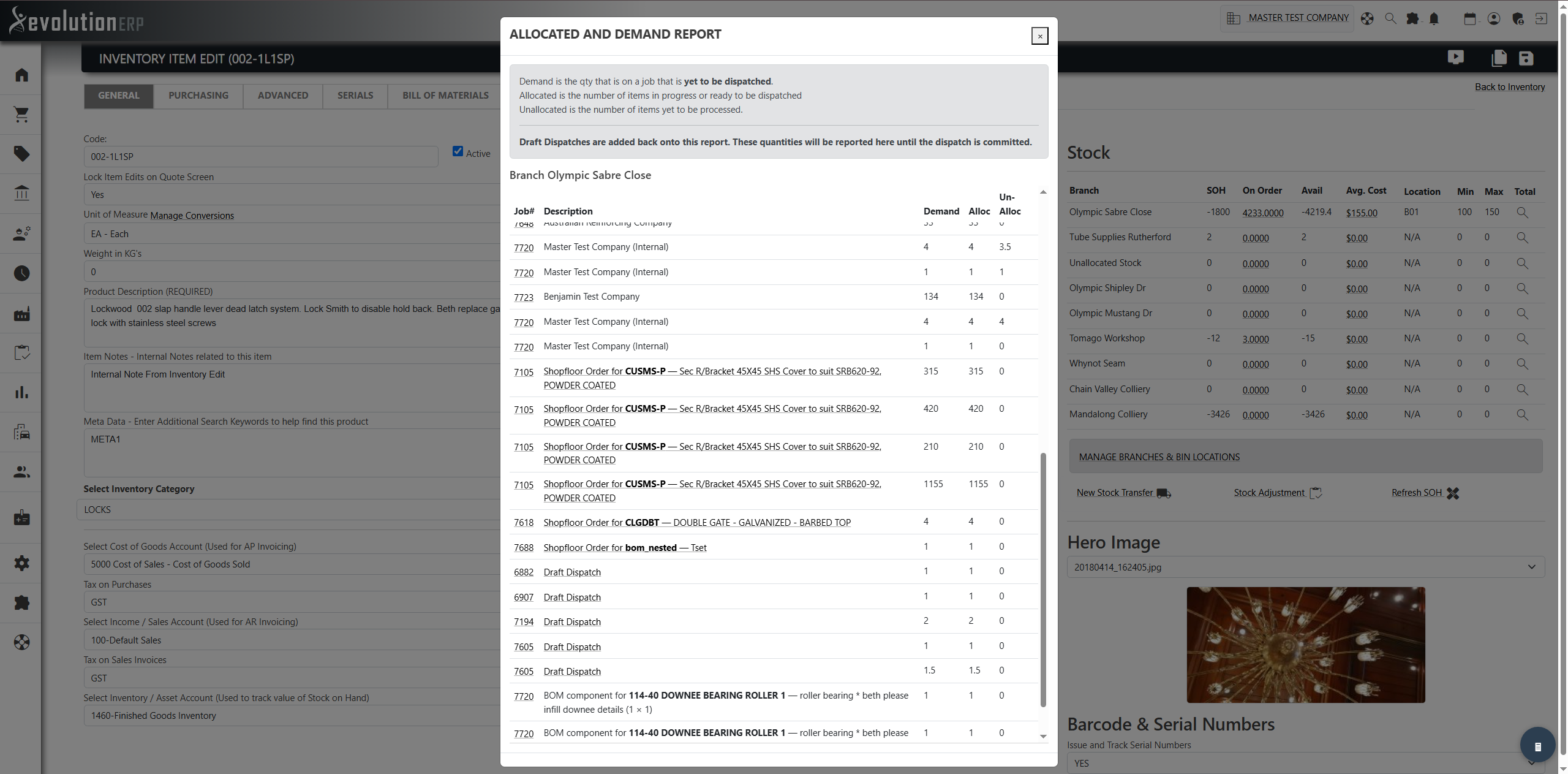
Purchased vs Manufactured: the Production Method
Not every item that has a Bill of Materials is actually built in-house — some are bought in complete, with the BOM kept only for costing or reference. To handle this, each item has a Production Method setting on its item screen:
| Production Method | Effect on its Bill of Materials demand |
|---|---|
| Manufactured | The item is built from its components. Its BOM components generate demand and allocations whenever it appears on a project. |
| Not Specified | Treated the same as Manufactured — the BOM components generate demand. (This is the default, so existing items behave sensibly without any change.) |
| Purchased | The item is bought in complete. Its BOM is treated as costing-only, so its components do not generate demand — the system assumes you will purchase the finished item rather than build it. |
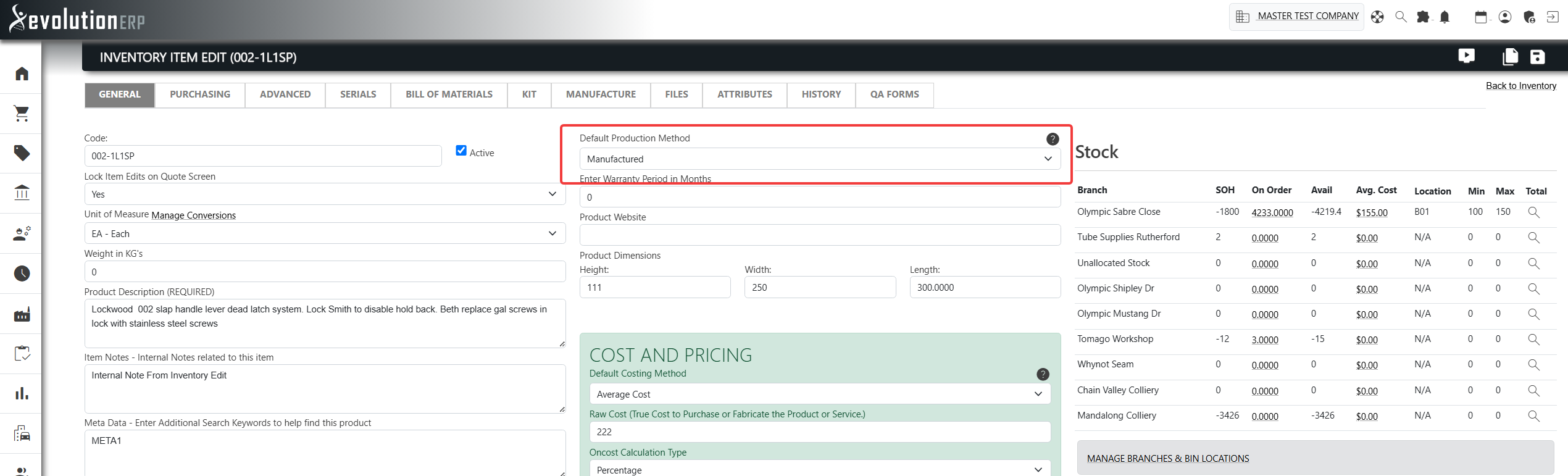
Project and Quote Level BOMs Always Count
The Production Method rule above applies only to an item’s standard (master) Bill of Materials — the default recipe held against the item.
When a BOM has been set specifically on a quote line or on a project line, that is a deliberate, one-off build instruction for that particular piece of work. Those overrides are always honoured and their components always generate demand — regardless of the parent item’s Production Method. In other words, if you’ve told Evolution to build something on a specific project, it trusts that instruction even if the item is normally purchased.
| Where the BOM comes from | Respects Production Method? | “Purchased” parent behaviour |
|---|---|---|
| Job-level BOM (set on the project line) | No | Components always generate demand |
| Quote-level BOM (set on the quote line) | No | Components always generate demand |
| Standard / master item BOM | Yes | Components excluded when the item is Purchased |
Changing an Item’s Production Method
If you change an item’s Production Method and save it, Evolution automatically recalculates the allocations for the components in that item’s Bill of Materials. This keeps the stock figures for those parts correct straight away — switching an item to Purchased releases the demand its parts were holding, and switching back to Manufactured re-applies it — with no manual recalculation needed.
Frequently Asked Questions
Do I need to change anything for existing items?
No. Items default to Not Specified, which behaves like Manufactured, so their BOM components now contribute to demand automatically. Only set an item to Purchased if you want to stop its parts from generating demand.
Why isn’t my Purchased item’s BOM showing demand?
That’s by design. A Purchased item is assumed to be bought in complete, so its standard BOM is treated as costing-only and its parts don’t create demand. If this item really is being built on a particular project, add the BOM on the project or quote line — those always count.
I changed the Production Method but the figures look the same.
Allocations for the item’s BOM components are recalculated on save. If a component is also demanded directly, or by other parent items, those other sources still apply — so its overall figure may not change by the full amount.