
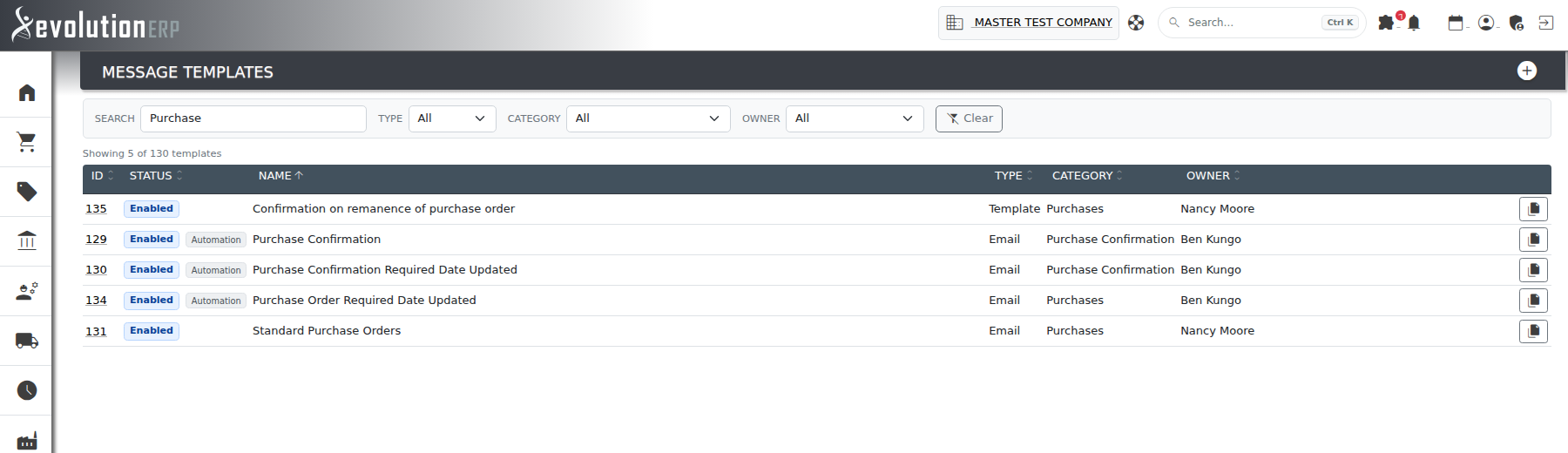
Message templates hold the wording you reuse: the notes and special clauses on a quotation, and the body of the emails Evolution sends with quotes, purchase orders, dispatches and invoices. The Message Templates register lists every one of them.
Opening the Register
Administrators open it from Settings → Message Templates. It can also be reached from Manage Templates in the quote notes window and from the template menu in the email panel.
Click any row to open that template. The add_circle_outline button at the top right starts a new one.
What Each Type Is For
Where a template is offered depends on its Type and Category. Hover over either cell in the register to see where that template shows up.
| Type | Category | Offered in |
|---|---|---|
| Template | Quotes | The quote notes window, section notes and the AI Notes template list |
| Clause | Quotes | The Special Clauses / Conditions tick-boxes in the quote notes window |
| Quotes, Purchases, Dispatches or Invoices | The email panel on that kind of document | |
| Purchase Confirmation | The purchase order confirmation email sent to suppliers |
Only templates with the status Enabled are offered.
Finding a Template
- Search: type part of the name or the ID. Every word you type must match.
- Type, Category and Owner narrow the list to one value each. The owner is the person who created the template.
- Clear resets every filter.
The list updates as you type. The line above the table tells you how many templates match, for example Showing 12 of 130 templates. Click a column heading to sort by it; click it again to reverse the order.
Once any template has been disabled, All, Enabled and Disabled buttons appear above the table, each with its count.
The Status Column
Next to Enabled or Disabled, a template can carry one of two labels:
- Automation: Evolution sends this email itself, for example purchase order confirmations, expiring qualification reminders and the daily timesheet reminder. It finds the template by its exact name, type and category. Edit the wording freely, but if you rename it or change its type or category, Evolution creates a new default copy and goes back to sending that. Hover over the label to see what it is used for.
- AI: a Quotes template with an AI default mode or AI instructions set. See Setting AI Defaults on a Template.
Editing a Template
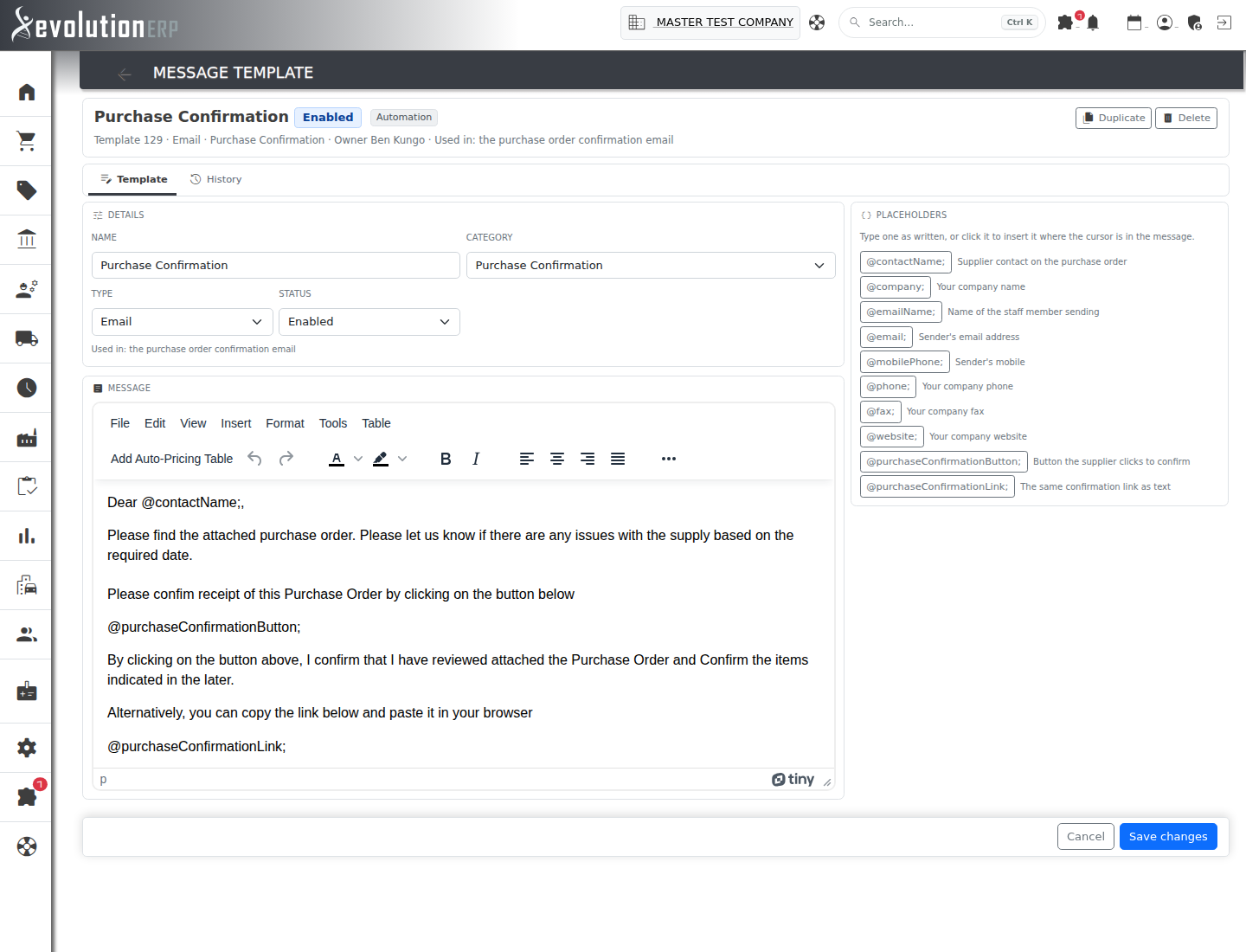
Clicking a row opens the template. The band at the top shows its name, whether it is Enabled or Disabled, the Automation and AI labels where they apply, and a line with its number, type, category, owner and where it is offered.
The Template tab has these panels:
- Details: the name, category, type and status. The line under them says where the template is offered, and changes as you change the type, category or status.
- Message: the wording. Add Auto-Pricing Table inserts the quote pricing table.
- Placeholders: the fields Evolution fills in for this type and category. See Placeholders.
- AI notes: the AI default mode and instructions. This panel is shown for Quotes templates and clauses, not for emails. See Setting AI Defaults on a Template.
Click Save changes to keep your edits, or Cancel to go back to the register without saving. Once you change anything, Unsaved changes appears next to the buttons, and Evolution warns you if you try to leave the page before saving.
For an Automation template, a warning appears under Details if you change its name, type or category, or disable it. Evolution finds these templates by their exact name, type and category, so after that change it would create a fresh default and send that instead. You can still save; the warning is there so it doesn't happen by accident.
The History tab lists every change to the template: who made it, when, and the values before and after.
Placeholders
A placeholder is a word between @ and ;, such as
@contactName;. When the email is sent or the quote is printed, Evolution replaces it
with the real value. Type it exactly as shown, including the capitals, or click it in the
Placeholders panel to insert it where the cursor is.
| Template | Placeholders available |
|---|---|
| Email in Quotes, Purchases, Dispatches or Invoices | The document's contact and their company: @contactName; @company; @email; @phone; |
| Purchase order confirmation email | Your company and the sender's details, plus @purchaseConfirmationButton; and @purchaseConfirmationLink; |
| Purchase order required-date emails | The purchase order number and its old and new required dates (@id; @oldrequiredBy; @requiredBy;) |
| Expiring qualification and timesheet reminder emails | The staff member's name, username and email, and for qualifications the qualification and its expiry |
| Quotes templates and clauses | The quote's contact and customer: @contactName; @company; @email; @phone;. These are filled in when you add the template to a quote, from the Notes window, a clause, section notes or AI Notes. Also @subtotal; @tax; @total;, which are filled in when the quote prints. |
In a quote, the contact placeholders are replaced as soon as the template is added, so the notes show the real name and you can still edit it. If the quote has no contact when you add the template, the placeholder stays as typed and prints that way, so fill in the contact first.
If the message contains a placeholder that isn't on the list for that template, a warning under the message names it. It would be sent exactly as typed, so check the spelling and capitals. Templates with other types or categories have no placeholders.
Starting a New Template
Click add_circle_outline on the register. Fill in a name, choose a type and category, and write the message. The placeholder list follows the type and category you choose. Click Add template and Evolution saves it and opens it, ready for further changes.
Copying a Template
To start a new template from an existing one, click file_copy at the end of its row on the register and confirm, or click Duplicate in the band of an open template. Evolution makes a copy called Copy of followed by the original name and opens it for editing. The copy keeps the wording, type, category, status and AI settings, and you become its owner. The original is not changed.
Deleting a Template
Open the template and click Delete in the band, then confirm. This can't be undone. Quotes and emails that already used the template keep their wording. If you only want to stop it being offered, set its status to Disabled instead.
Who Can Change Templates
Anyone can view the register and open a template. Creating, copying, editing and deleting templates needs an administrator or a user with administrator access to the Sales module. Everyone else sees the template read-only, with a note saying so: the new, copy and delete buttons are hidden and there is no Save button.
Every template that is created, copied, changed or deleted is recorded in the log with who did it. A deleted template's settings are kept in its log entry.
Related Pages
- AI Quote Notes: drafting quote notes from one of your templates.
- The Quote Register: finding the quotes these notes go on.