
Evolution pushes sales invoices, supplier bills and credit notes into Xero, and reads payments back. Where a company runs more than one set of books, Evolution can be connected to several Xero organisations at once — and each branch can be told which organisation its paperwork belongs in, so the right one is already selected before you press send.
Setting Up the Connection
Go to Settings → Company Setup and scroll to the Xero Integration block.
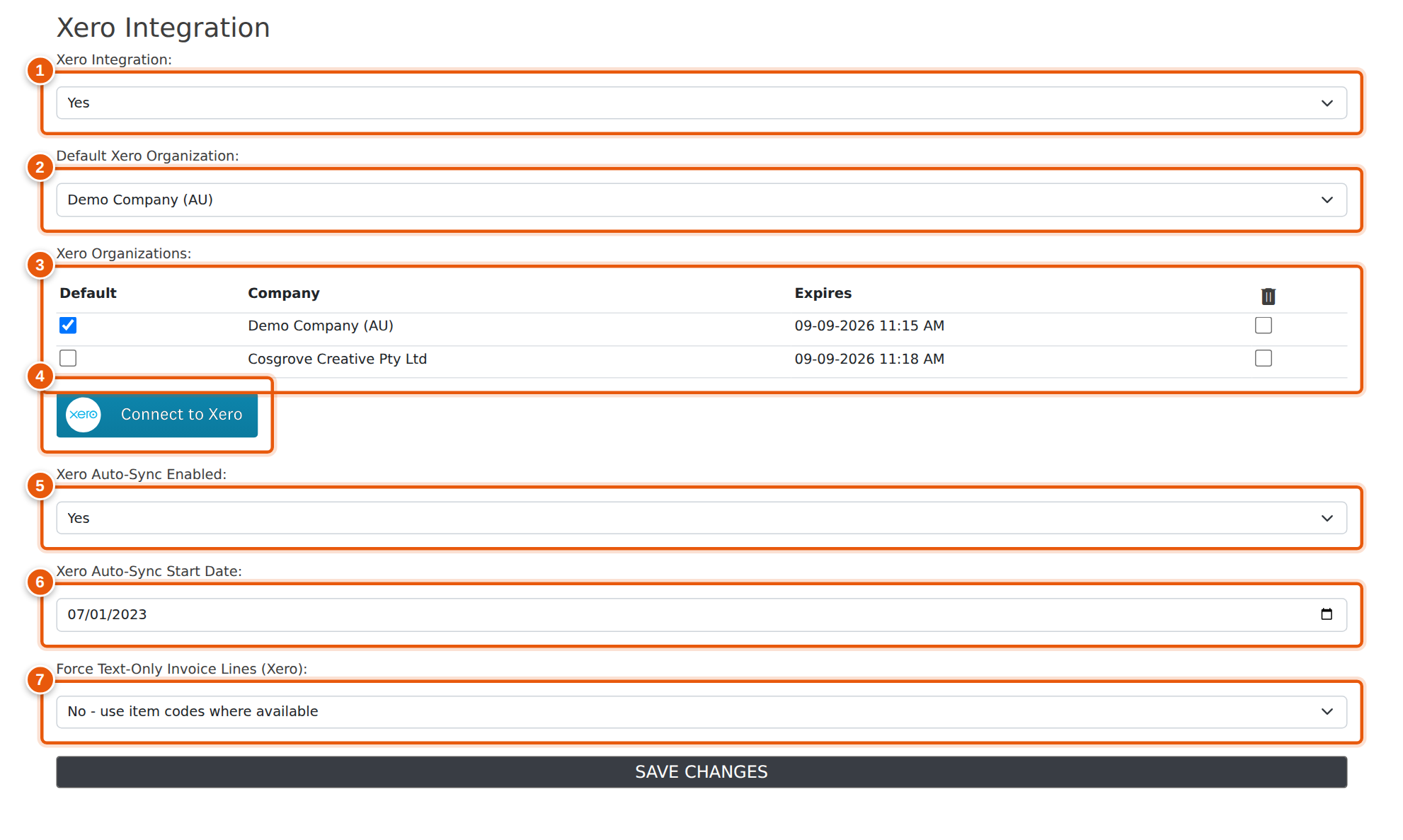
| # | Setting | What it does |
|---|---|---|
| 1 | Xero Integration | Turns the integration on. With this set to No, none of the Xero buttons or panels appear anywhere in Evolution. |
| 2 | Default Xero Organization | The organisation Evolution falls back to for background work — the overnight sync, payment reconciliation and the Xero chart of accounts. |
| 3 | Xero Organizations | Every organisation currently connected, with the date its authorisation expires. Tick Default to nominate the fallback, or tick the bin column to disconnect one. |
| 4 | Connect to Xero | Starts the Xero sign-in. You log in to Xero, choose the organisation to authorise, and are returned here with it added to the list. Run it once per organisation you want connected, and again whenever an authorisation is about to expire. |
| 5 | Xero Auto-Sync Enabled | Lets the overnight project create and update documents in Xero without anyone pressing a button. With this off, everything is sent by hand from the document screen. |
| 6 | Xero Auto-Sync Start Date | The earliest document date the sync will consider. Anything dated before this is left alone — this is what stops a first sync reaching back through historical data. |
| 7 | Force Text-Only Invoice Lines | Sends every line as plain description and amount rather than matching it to an item code in Xero. Useful where Xero does not carry your inventory. |
Mapping a Branch to a Xero Organisation
If you have two or more Xero organisations connected, every invoice, bill and credit note has to be told which one it belongs in. Rather than choosing that on each document, map it once against the branch.
Go to Settings → Branches, open a branch, and set Xero Organisation.
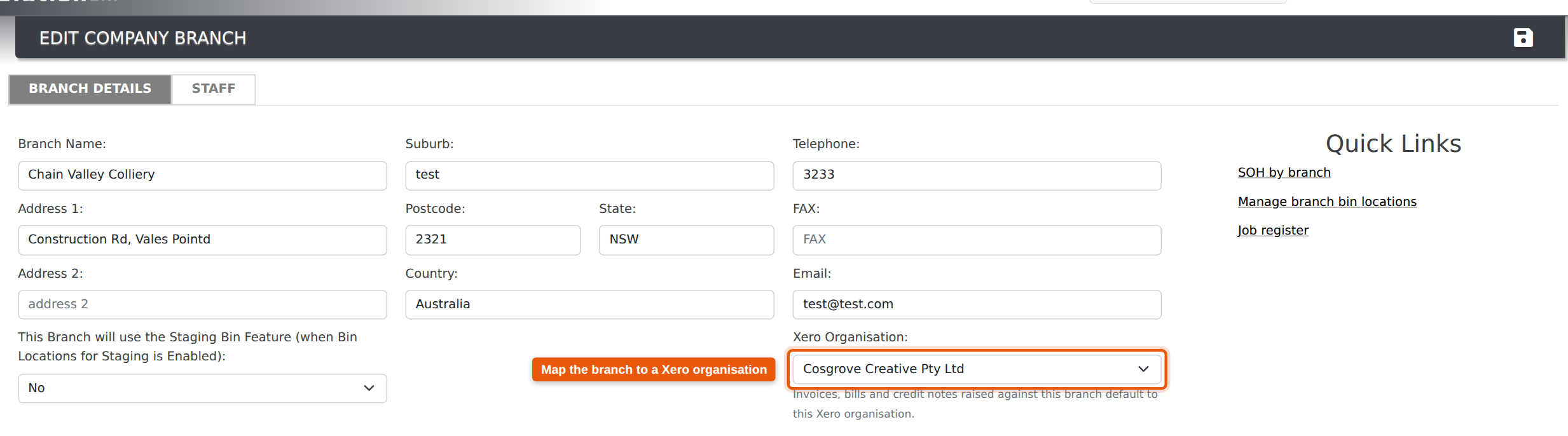
From then on, anything raised against that branch opens with that organisation already selected.
Mapping is optional
Leave a branch on “Not mapped — choose on each document” and it behaves exactly as it always has: the picker opens on Please Select and somebody chooses the organisation before sending. Nothing is assumed and nothing is sent to the wrong company by default.
This matters where one branch genuinely raises work for both sets of books. Existing documents are never changed by setting a mapping — it only affects what is preselected on screens from that point on.
How the Organisation Is Chosen
When a document screen opens, Evolution works down this list and stops at the first answer it finds:
- The document has already been sent to Xero. It keeps the organisation it went to, and that never changes — a resend always goes back to the same company.
- Only one organisation is connected. That one is selected.
- The document’s branch is mapped. The mapped organisation is selected.
- Otherwise the picker stays on Please Select and waits for a choice.
Step 3 has one extra check: if a mapped organisation has since been disconnected, the mapping is ignored and the picker falls back to Please Select rather than preselecting something that is no longer there.
On the Document Screens
Invoice Entry
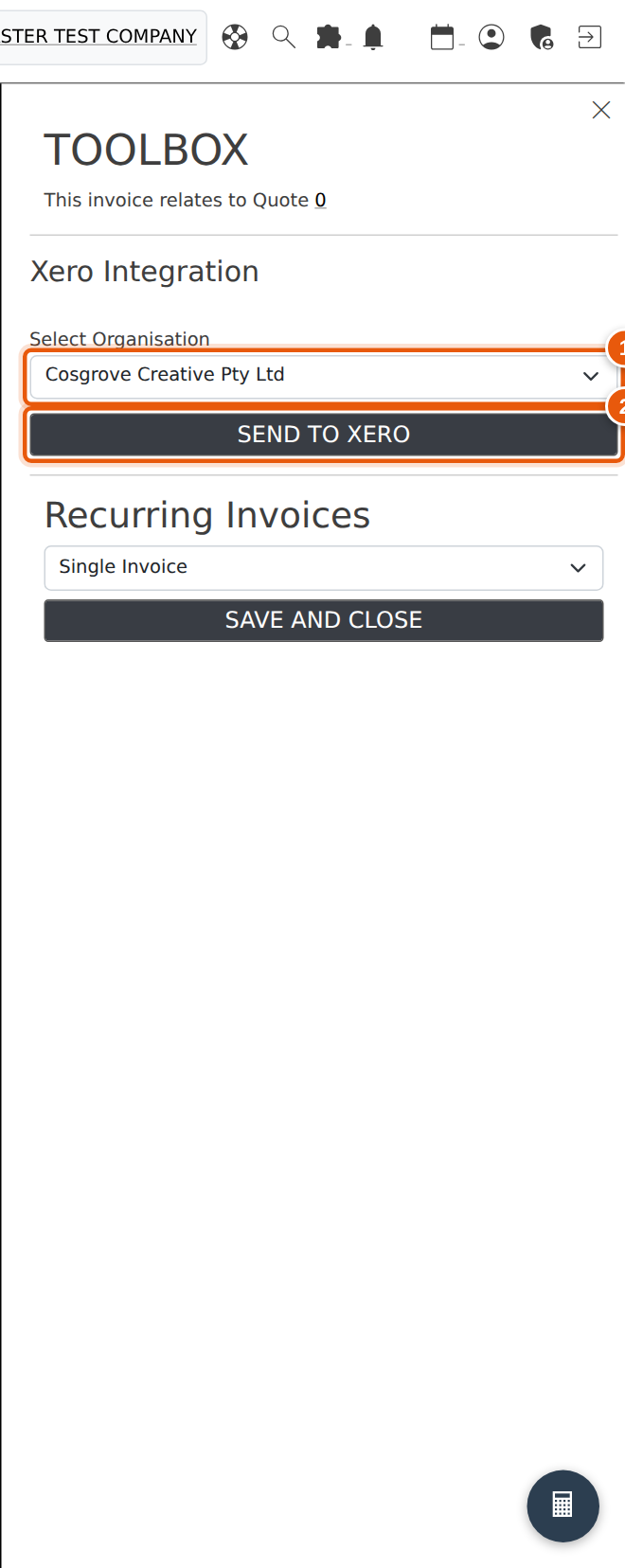
Open the Xero panel from the toolbox on the right of Invoice Entry. Select Xero Organisation (1) is already set from the invoice’s branch; Send to Xero (2) pushes it.
Bill Entry
On Bill Entry the organisation picker sits in the page header next to the branch, so you can see the pair together. Change the Branch (1) and Select Xero Organisation (2) follows it.

Credit Notes
Credit notes work the same way. The Xero panel is opened with the blue Xero button, and appears only once the credit note has been committed.
Common Questions
I cannot see the Xero Organisation field on my branches.
It is shown only when more than one Xero organisation is connected. Check Settings → Company Setup — if the Xero Organizations table lists one organisation, there is nothing to map and the field is hidden by design.
Do I have to map every branch?
No. Map the branches where the answer is always the same, and leave the rest unmapped. An unmapped branch keeps the existing behaviour of choosing on each document.
Will mapping a branch move documents that are already in Xero?
No. Mapping changes what is preselected on new documents only. Nothing already sent is touched, and no existing documents are updated when you set a mapping.
Both of my Xero companies are billed from the same branch. What do I do?
Branch is the only thing the mapping can key off, so if one branch feeds both sets of books there is nothing to map — leave that branch unmapped and keep choosing on the document. If you would rather it defaulted, add a second branch for the other set of books and map each one.
The picker went back to “Please Select” on a branch I mapped.
The organisation that branch points at is probably no longer connected — check the Xero Organizations table on Company Setup. Reconnect it, or map the branch to one of the organisations still in the list.
Does the overnight sync use the branch mapping?
Not yet. The mapping applies to the document screens. The background sync continues to work as it did, using the default organisation.
Related Pages
- Control Accounts & Tax Accounts — the accounts documents post to before they reach Xero.
- Setting Permissions — who can reach Company Setup and Branches.
- Bill Entry — the supplier side of the same flow.
- Syncing Payments from Xero — pulling a missed payment onto a single invoice on demand.
- Credit Notes — raising and committing a credit note before it is sent.