
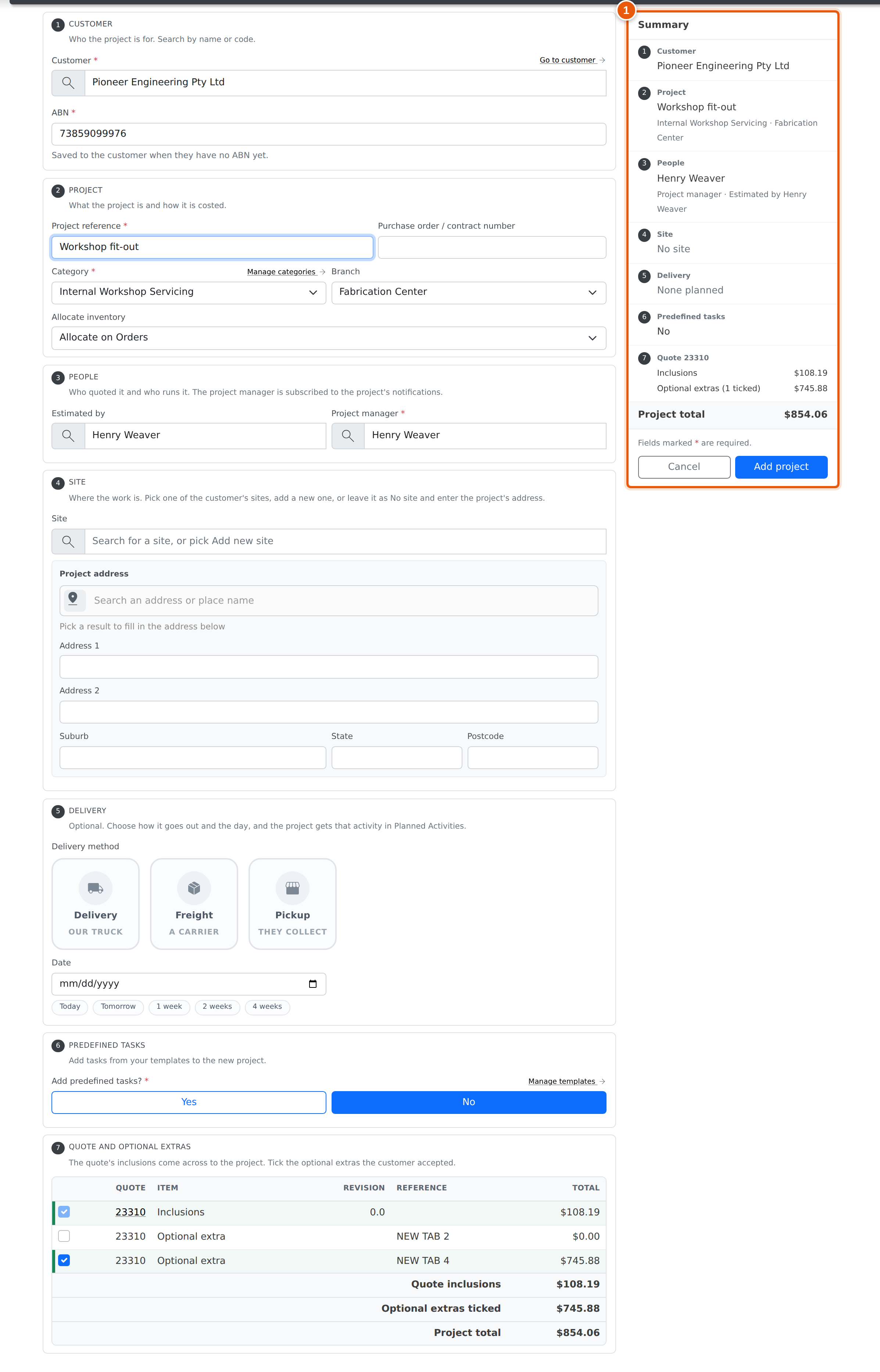
New project is one form, laid out as numbered cards from top to bottom: the customer, the project, the people, the site, an optional planned delivery, any predefined tasks and, when you start from a quote, the quote and its optional extras.
Fields marked * are required.
On a wide screen a Summary sits beside the form and stays in view while you scroll. It has one row per card showing what you have entered so far, with Required against anything still missing and a flag for a customer on stop credit or a possible duplicate. Click a row to jump to its card. Cancel and Add project are at the bottom of the summary. On a smaller screen there is no summary, and Cancel and Add project stay pinned at the bottom of the window instead.
Where to Find It
- From a quote: open the quote and use Create Project in the Toolbox, or Make a project on an opportunity. The customer, site, estimator, reference and branch are filled in from the quote. See Creating Projects.
- From a customer: New Project on the customer's account. The customer is filled in.
- From scratch: the add_circle_outline button on the Projects register, or New project in the global search.
1. Customer
Search for the customer by name or code. Once one is picked, a Go to customer link opens their account in a new tab.
ABN shows the customer's ABN. If the customer has none yet, the ABN you type here is saved to their account. It is required when your company requires an ABN on projects.
If the customer is on stop credit or the account is disabled, a red Cannot create project flag appears under the customer and the project cannot be added. See Credit Limits & Stop Credit.
2. Project
- Project reference (required): the name the project is known by.
- Purchase order / contract number: the customer's order number, if they gave you one.
- Category (required): controls how the project is costed and which modules it uses. Manage categories opens the category list in a new tab.
- Branch: defaults to the quote's branch, or to yours.
- Do and charge: only shown for a category set up as do and charge. Choose whether every item on the project is flagged as do and charge.
- Allocate inventory: when stock is allocated to the project.
- Project code: only shown when your company uses project codes. The month and year make up the code's prefix. Set a later month for a project that starts in the future.
Possible Duplicates
As you type the reference or pick a site, Evolution checks the customer's open and on-hold projects. Any project that has the same reference, or is at the same site and was added in the last 90 days, is listed under the reference. Click a row to open that project in a new tab.
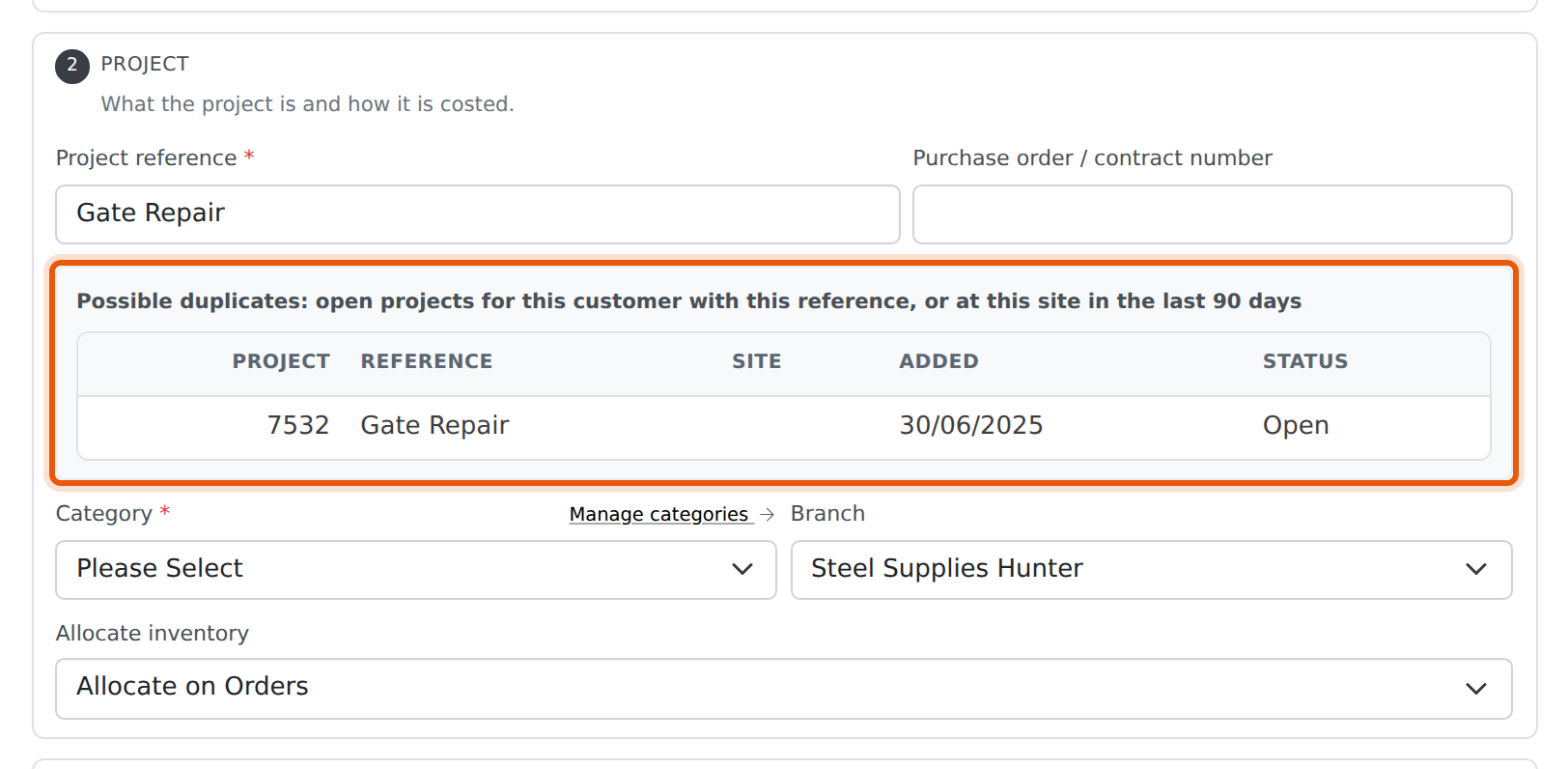
The list is a warning only. If the project really is new, carry on and add it.
3. People
- Estimated by: who quoted the work. From a quote, this is the quote's estimator.
- Project manager (required): who runs the project. It starts as the quote's estimator, or as you when there is no quote. The project manager is subscribed to the project's notifications.
4. Site
Where the work is. Search the Site field and choose one of three options:
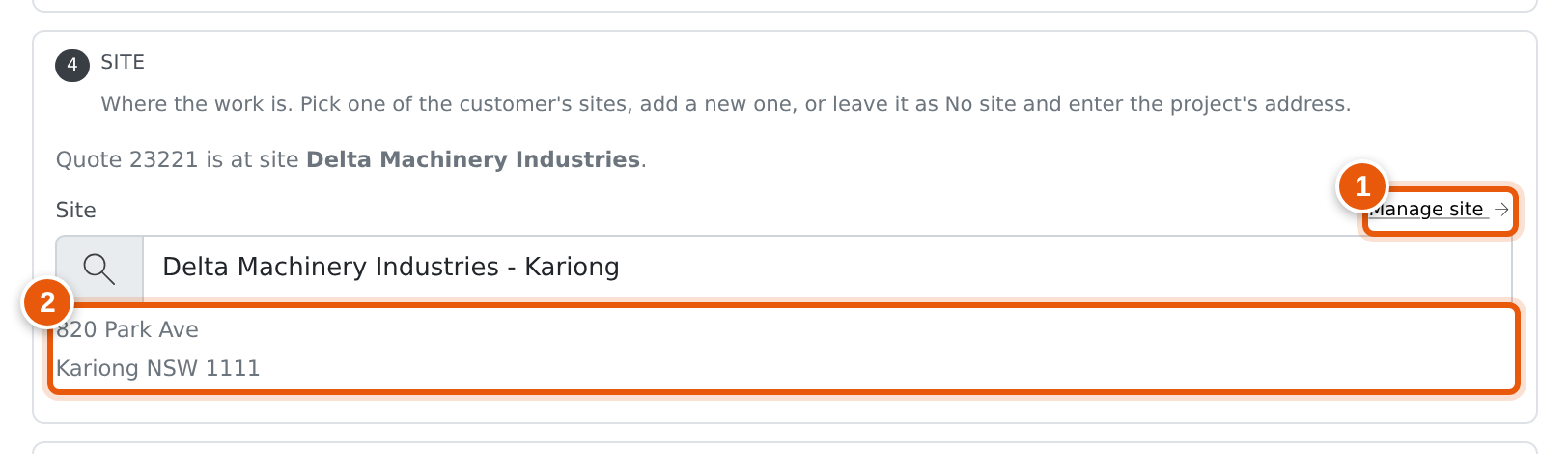
- One of the customer's sites. The site's address is shown under the field and Manage site opens it in a new tab. A customer with only one site has it picked for you.
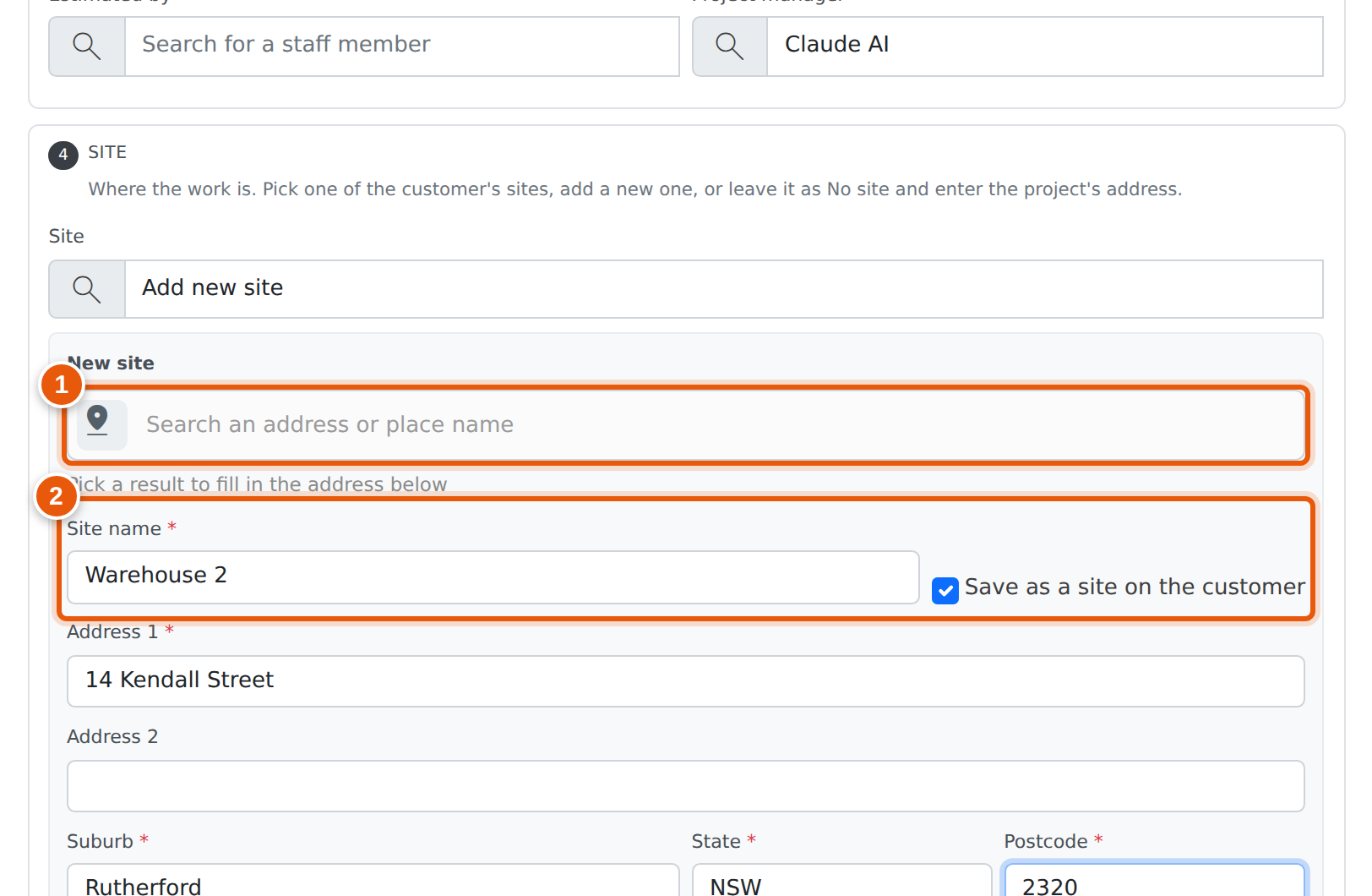
- Add new site. Enter the address. Leave Save as a site on the customer ticked to add it to the customer's sites; it then needs a site name too.
- No site (leave the field empty). Enter the project's own address instead, if it has one.
On a new site or a project address, use the quick search to look up the address or a place name. Picking a result fills in the fields below it. See Address Quick Search.
5. Delivery
Optional. If you already know how the order goes out and when, plan it here, and the project is created with that activity in its Planned Activities.
- Delivery method: click one. Delivery is your own truck, Freight is a carrier, and Pickup means the customer collects. The names are your company's activity type names. Click the chosen one again to clear it.
- Date: today or later. Today, Tomorrow, 1 week, 2 weeks and 4 weeks under the field fill it in for you.
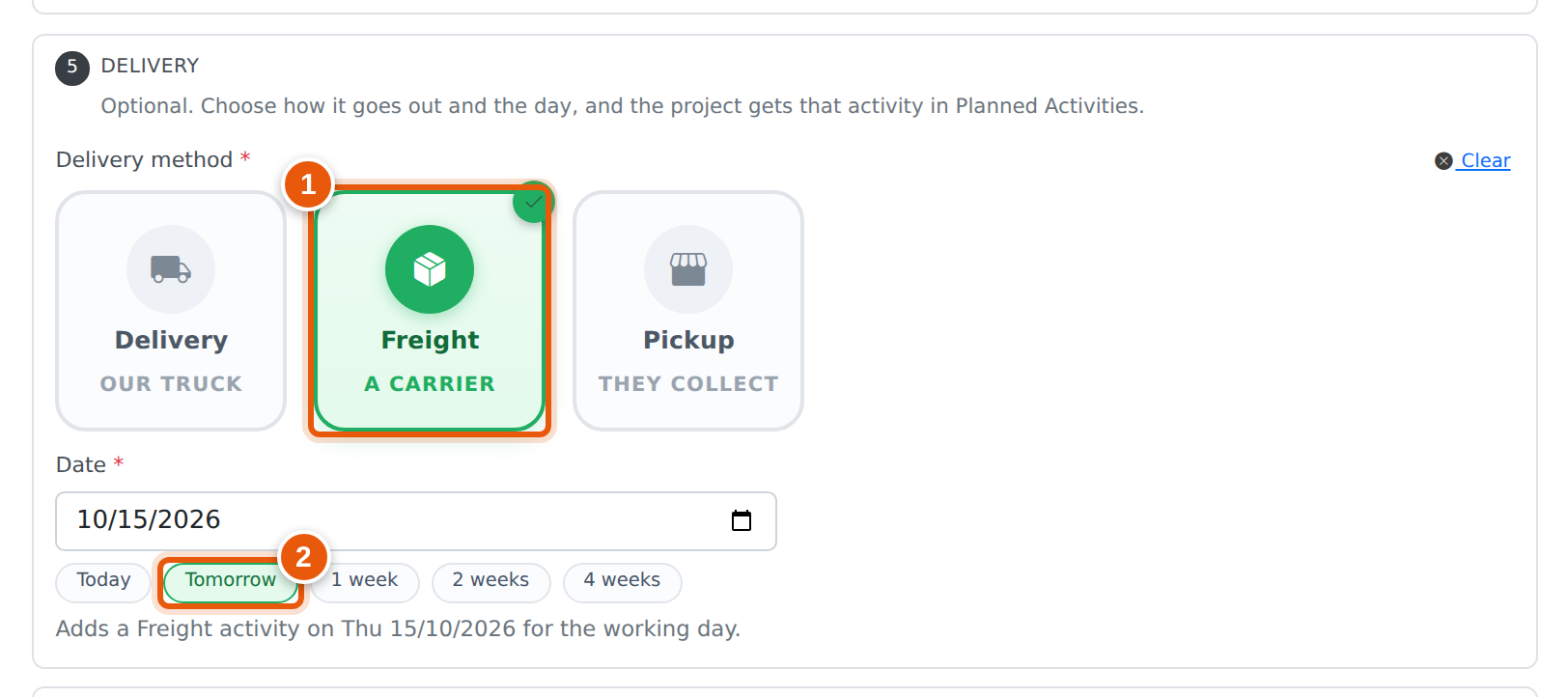
Leave both empty to plan nothing. Once you fill in one, the other is required. Clear empties both.
The activity is named after the method and the project reference, for example Freight: Gate Repair. It runs for your working day's hours on that date, at the project's site (or its own suburb when it has no site). Change it afterwards in Planned Activities.
The card only shows the methods your company has set up as activity types 1 to 3 under their usual names (Delivery, Freight, Pickup or Collection). With none of them, the card is not shown.
6. Predefined Tasks
Choose Yes to add tasks from your task templates. The templates are listed; tick the ones to add, and open a template to see its tasks. Choose No to add none. Anything ticked is then ignored.
Manage templates opens the task templates in a new tab.
7. Quote and Optional Extras
Only shown when you start from a quote. The quote's inclusions always come across to the project. Each optional extra has its own row; tick the ones the customer accepted, by clicking the box or anywhere on the row.
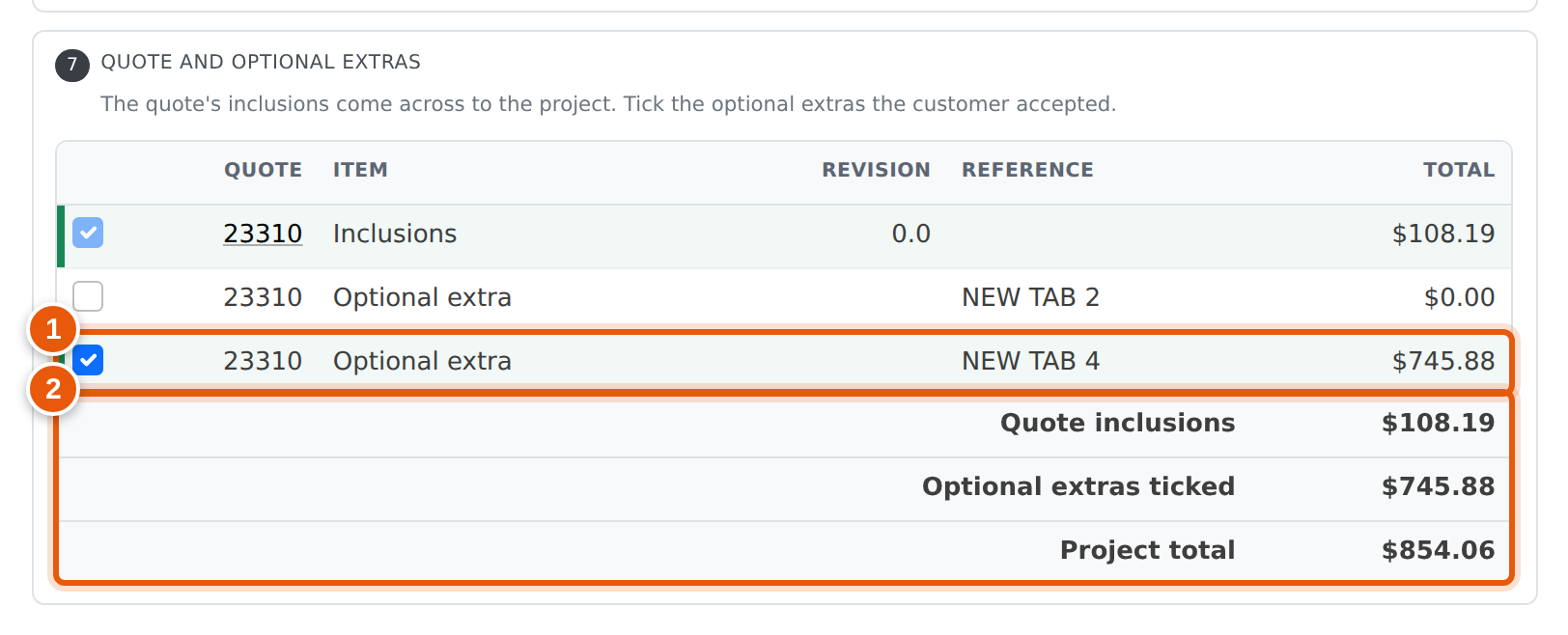
Extras can still be added or removed after the project is created. See Optional Extras.
Adding the Project
Click Add project. If a required field is missing, it is highlighted and nothing is saved. Otherwise Evolution creates the project, copies the quote's items and the extras you ticked onto it, adds the planned delivery and any predefined tasks, and opens the new project.
The project starts On hold instead of open when:
- the customer is on cash-on-delivery terms and new COD projects are set to be held (reason Credit - Deposit Pending), or
- projects run in activities strict mode (reason Activities on Strict Mode) and you did not plan a delivery. You are taken to the project's activities to plan one. With a delivery planned, the project already has its activity, so it starts open.
Permissions
Creating a project needs access to Projects (Job Costing) or Sales, or an administrator login. Without it, the page explains that you don't have access.
Frequently Asked Questions
I picked Add new site but it won't let me add the project.
A new site needs Address 1, Suburb, State and Postcode, and a site name when Save as a site on the customer is ticked. The missing fields are highlighted. If the project has no address, leave Site empty instead.
The Delivery card isn't there.
Your company has no activity types set up as Delivery, Freight or Pickup. Plan the project's activities from Planned Activities after it is created.
Where did the Description field go?
It was never saved to the project, so it has been removed. Put the details in the project's notes after it is created.
Why does Possible duplicates list a project with a different reference?
It is at the same site and was added in the last 90 days. Check it isn't the same job before adding another.
I ticked an extra on the quote. Why is it unticked here?
Only the extras you tick on this form come across. Tick it here, or add it later from the project's Quotes tab.