Where to Find Them
Menu → Reports → Reports Dashboard, then the Financials pill.
Financial reports require General Ledger access at the admin (full) level together with reporting access, or administrator access — if you don't see them, contact your administrator. The Misaligned / Adjusted Invoices report is also available to accounts-receivable staff.
Every financial report runs automatically when you open it, has a Branch filter inside the report (defaulting to all branches — this is the filter that drives the figures, not the branch selector in the page header), and a CSV button that exports the results once a run has data. Totals are summed from decimal columns and rounded to the cent.
Debtors & Creditors
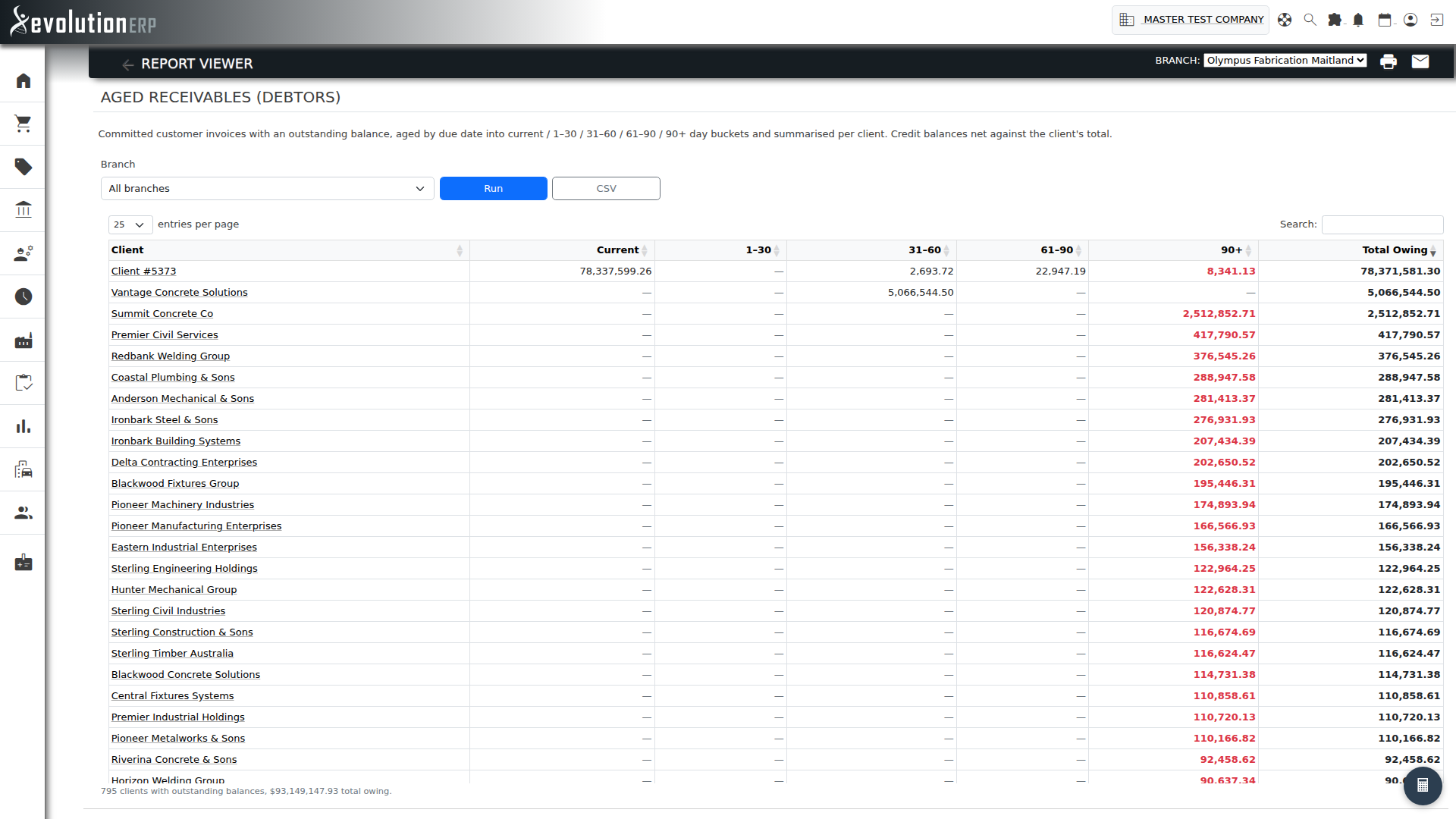
Aged Receivables (Debtors)
What it shows: Every committed customer invoice with an outstanding balance, aged by its due date and rolled up per customer into Current / 1–30 / 31–60 / 61–90 / 90+ day buckets, plus a Total Owing. The balance used is the invoice's own outstanding balance, so credit balances net against what a customer owes. The 90+ column is shown in bold red. Voided and cancelled invoices are excluded.
How to use it: Filter by Branch and read the buckets to see who is overdue and by how much; the footer totals the whole ledger. Click a customer to open their record, sort any column, or export to CSV.
info Ageing is always calculated as at today — there is no "as at a past date" option, so it reflects the current outstanding position.
Aged Payables (Creditors)
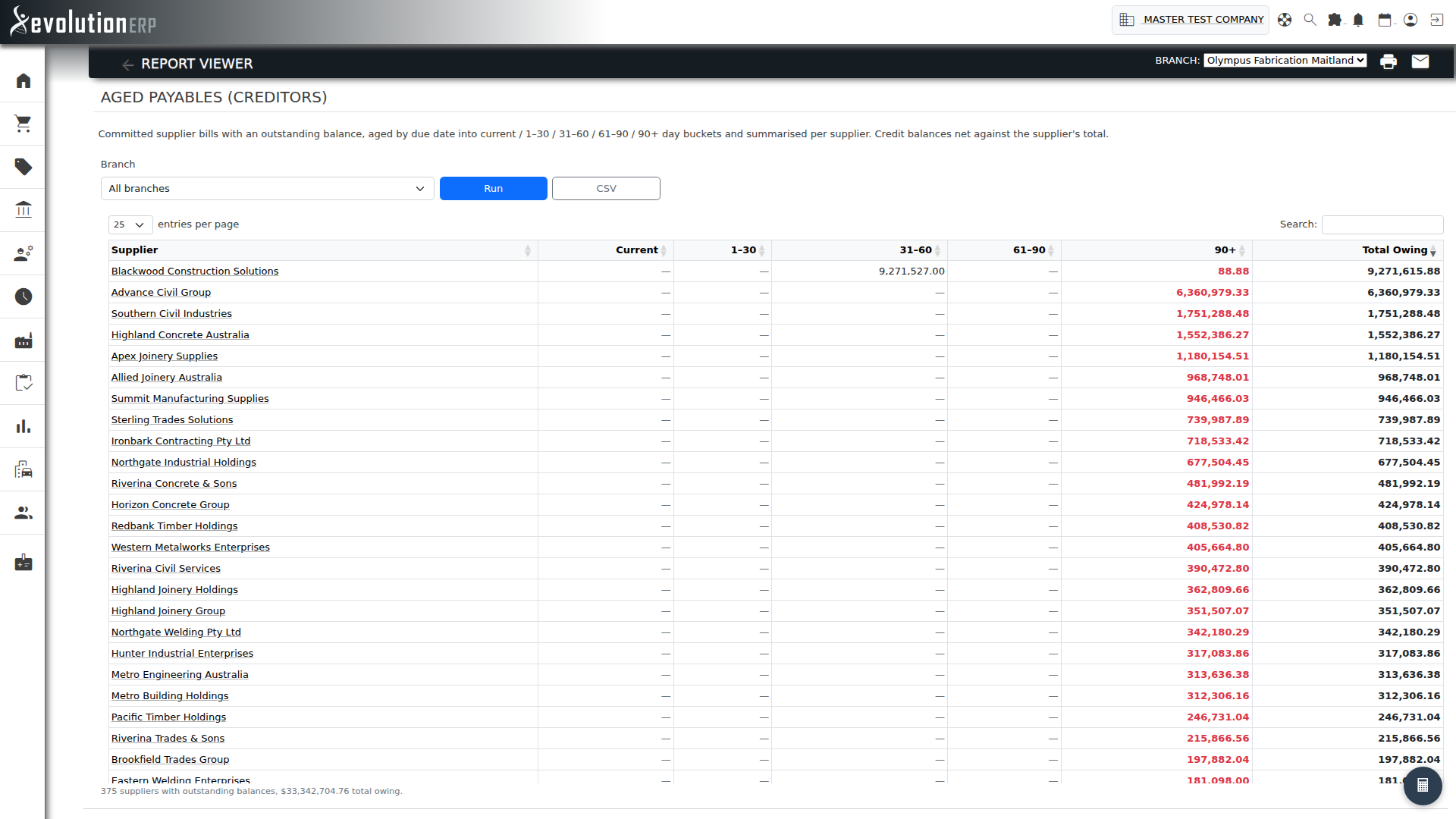
What it shows: The mirror of Aged Receivables over supplier bills — every committed bill with an outstanding balance, aged by due date (falling back to the entry date) into the same buckets and rolled up per supplier. Only committed bills (past draft) are included.
How to use it: Filter by Branch to see what you owe and when it falls due, for cash-flow planning and paying suppliers on time. Click a supplier to open its record, sort any column, or export to CSV.
Misaligned / Adjusted Invoices
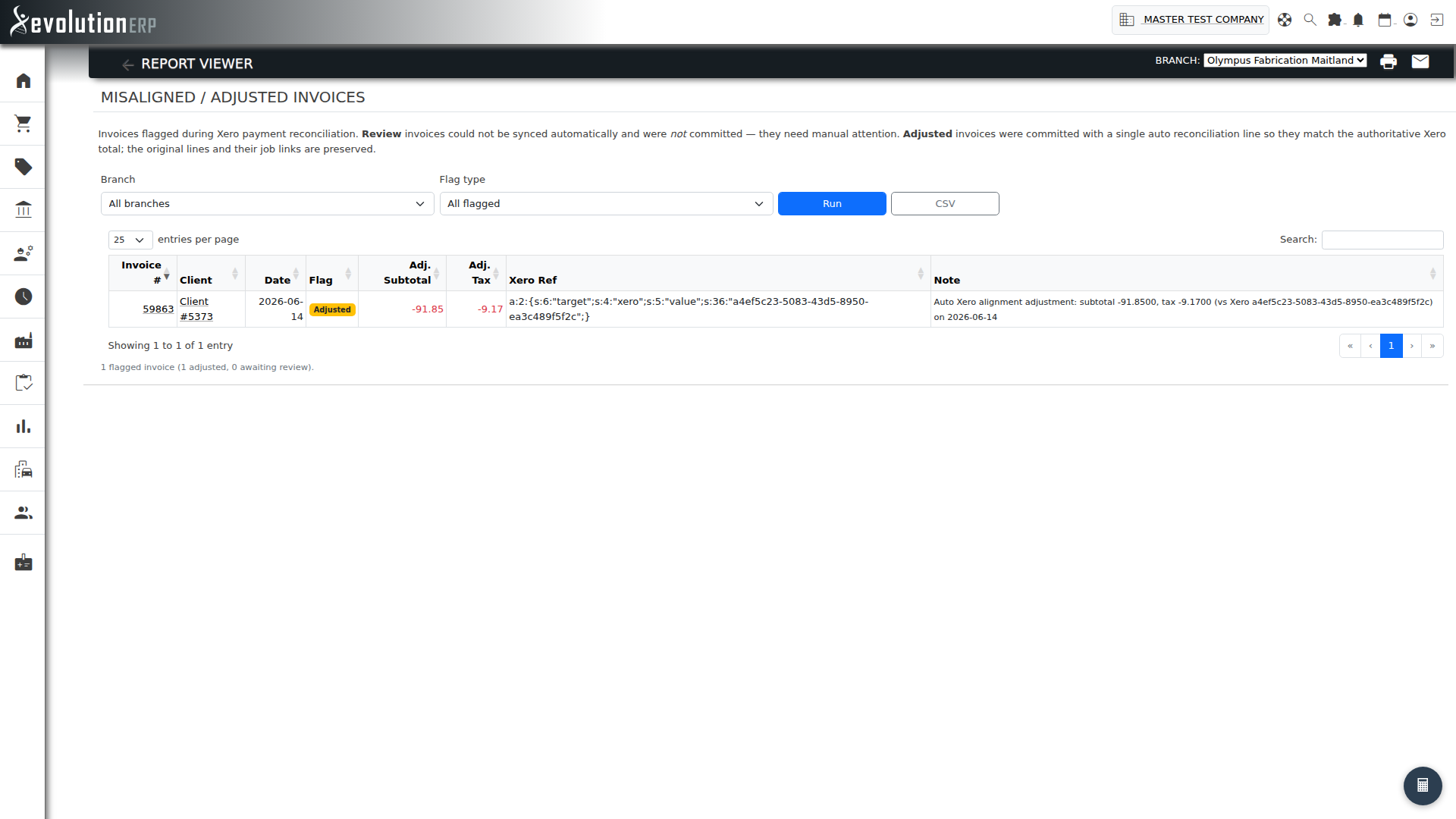
What it shows: Invoices flagged during Xero reconciliation. Each row is one of two kinds:
- Adjusted — the invoice was committed with an automatically-added alignment line so its total matches Xero. The original lines and project links are preserved; the report shows the adjustment's subtotal and tax.
- Review — the invoice could not be auto-synced and was not committed. It needs manual attention.
How to use it: Filter by Branch and by Flag type (all flagged / adjusted / review). Work the Review rows first — they are unresolved. Click an invoice number to open it or a customer to open their record. Amounts are shown to four decimals so small alignment deltas are visible.
info This report is only meaningful where the Xero payment-sync is in use.
Performance
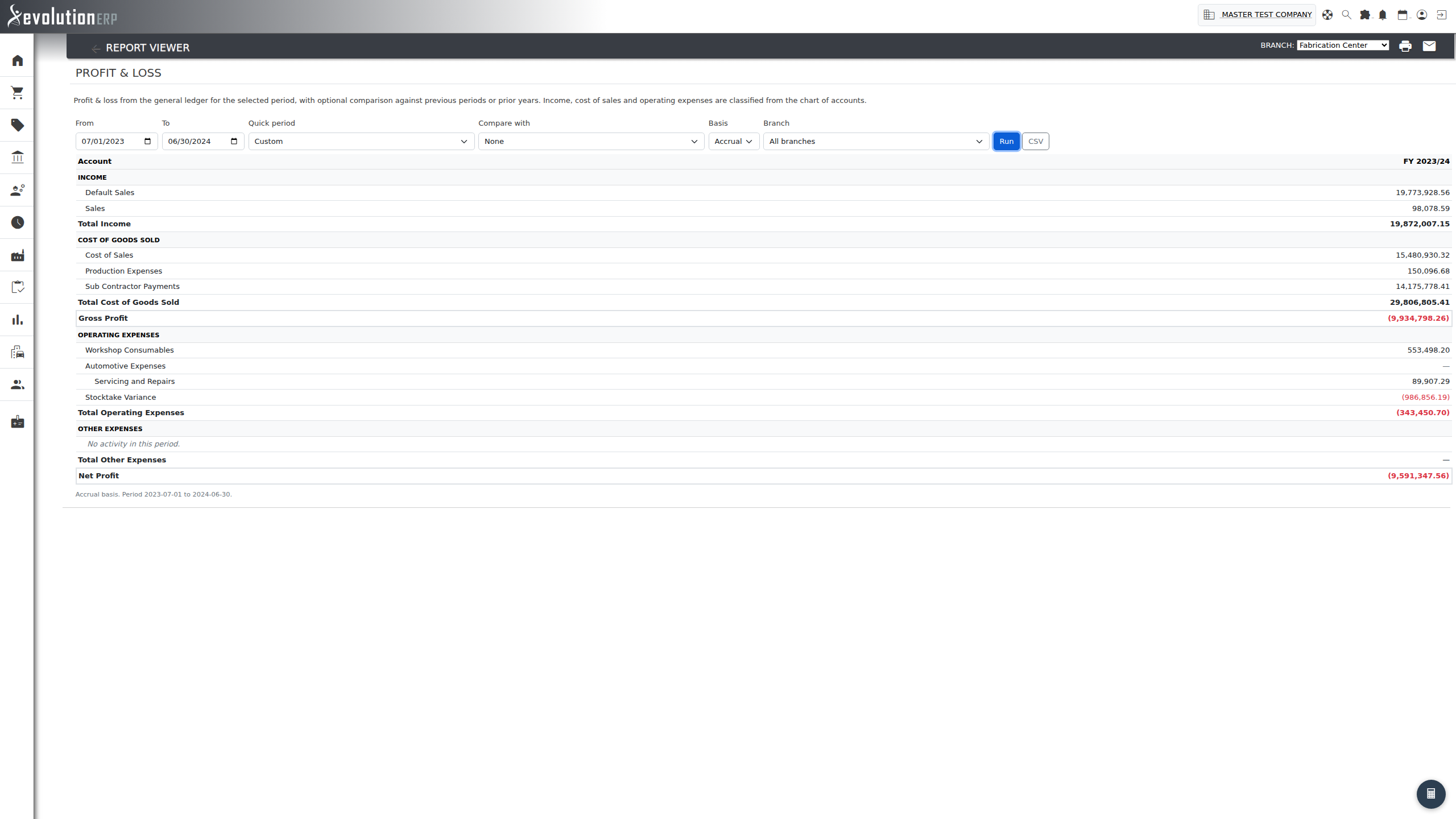
Profit & Loss
What it shows: A Xero-style profit & loss built from the general ledger and classified by your chart of accounts into Income, Cost of Goods Sold, Operating Expenses and Other Expenses, with derived Gross Profit (Income − COGS) and Net Profit (Income − COGS − all expenses). Accounts are shown as an indented parent/child tree; balance-sheet accounts are excluded.
How to use it:
- Set the From / To dates (defaults to the current financial year) or pick a Quick period — this month, last month, this quarter, this FY or last FY.
- Compare with adds columns for the previous period, previous three periods, the previous year, or the previous three years.
- Switch the Basis between Accrual (default — recognises ledger entries by date) and Cash (recognises income and expense as committed payments are banked).
- Filter by Branch, and export the statement to CSV.
info The Quick period presets assume a July–June financial year; if your EOFY is different, set the From / To dates by hand for those periods. Per-branch figures rely on the branch being stamped on ledger entries, which happens on newly committed transactions.
Revenue & Tax
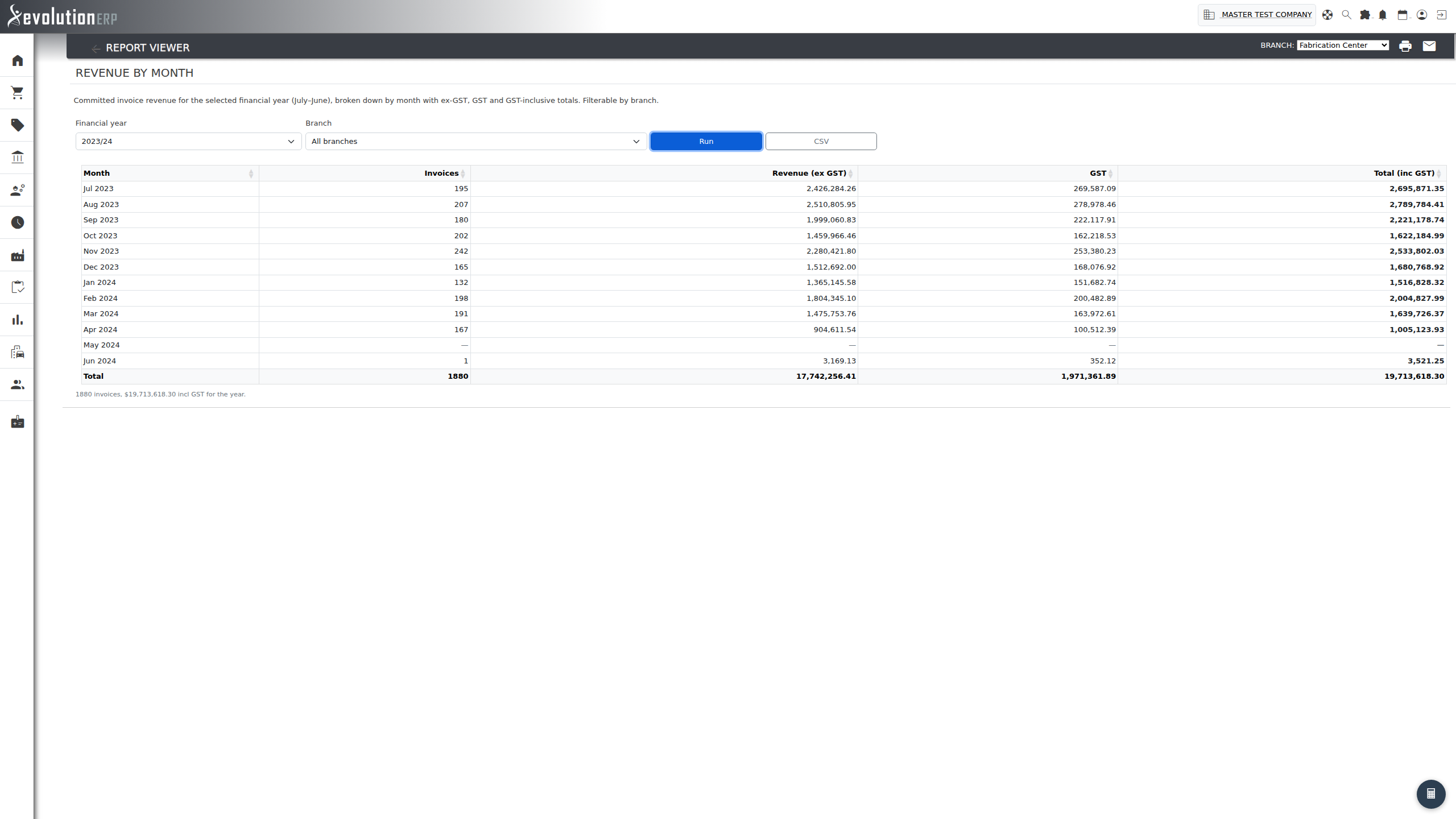
Revenue by Month
What it shows: Committed sales-invoice revenue for one financial year, broken down by month into Revenue (ex-GST), GST and Total (inc-GST), with an invoice count per month and a totals row. Months with no invoicing are shown as zero so the full year is always visible. Voided and cancelled invoices are excluded.
How to use it: Pick the financial year and (optionally) a Branch, then read the monthly trend. Export to CSV for a board pack.
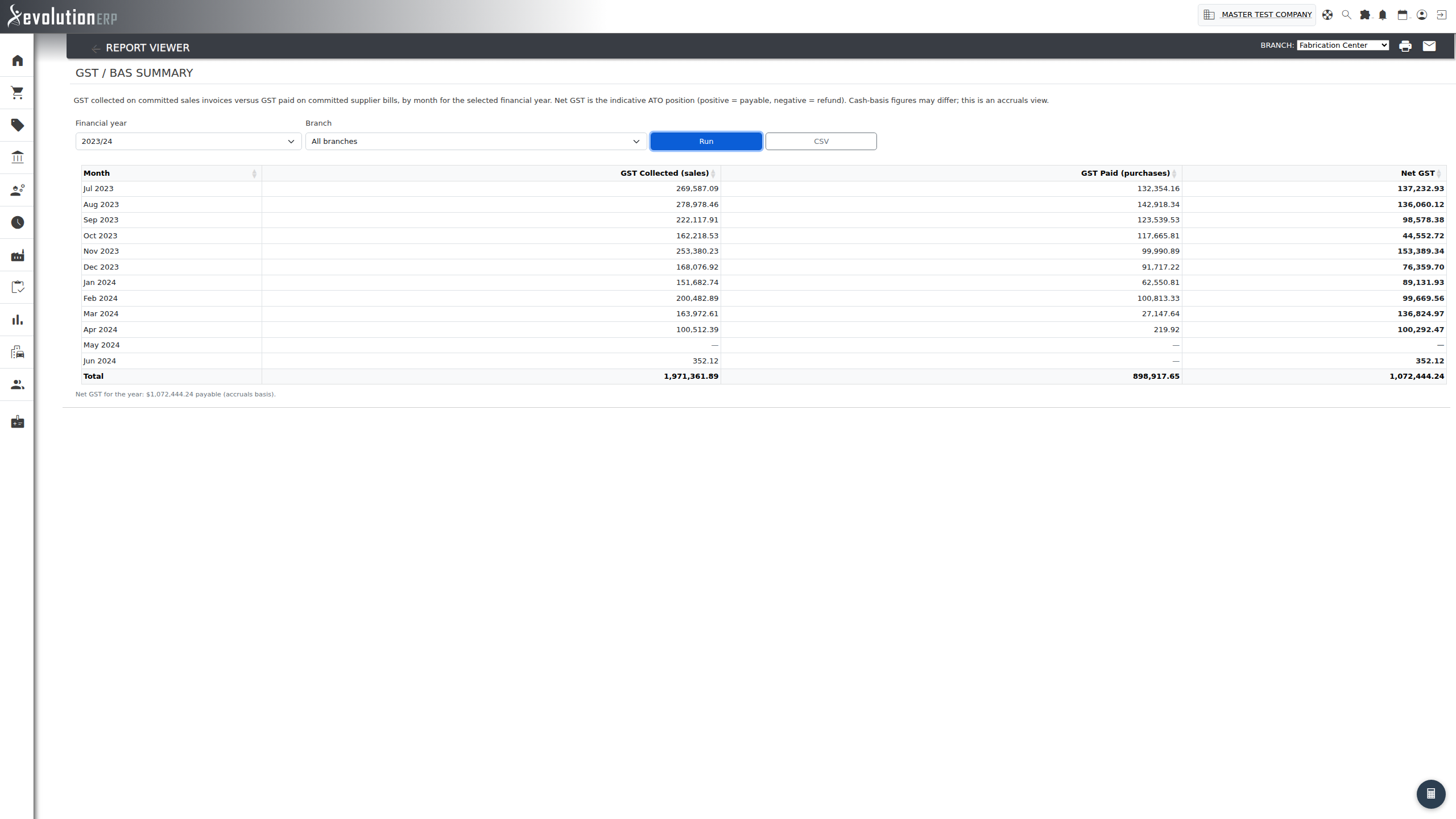
GST / BAS Summary
What it shows: GST collected on committed sales invoices versus GST paid on committed supplier bills, month by month, with the Net GST position for each month. A positive net is payable to the ATO; a negative net (shown green, in parentheses) is refundable.
How to use it: Pick the financial year and (optionally) a Branch. Use it as an indicative check of your GST position ahead of preparing a BAS, and export to CSV.
info This is an accruals-basis, indicative figure — not a substitute for a filed BAS. Sales are counted by invoice date and purchases by bill-entry date, so a cash-basis or strictly date-of-supply view may differ.