
Every time somebody in Evolution creates, changes, commits or deletes a record, a line goes into the audit log. That is what fills the History tab on a quote, a project, an invoice or an item. It is the record of who did what, and it is deliberately never overwritten.
The consequence is that it only ever grows. On a busy site the audit log becomes the single largest thing in the database — in some cases larger than every quote, project, invoice and stock movement put together. Audit Log Archiving lets you keep the recent history in the application, where you actually look at it, and move everything older than two or three years out to quarterly files you can download and keep.
What the Audit Log Is
The audit log holds one row per recorded action. Each row carries:
| Column | What it holds |
|---|---|
| Date | When the action happened. This is what the retention period is measured against. |
| Module | Which part of Evolution — invoice, quote, project, inventory and so on. |
| Identifier | The record the action was against — the invoice number, the project id, the item id. |
| Staff | Who did it, recorded by both id and name so the entry still reads correctly after someone leaves. |
| Notes | The short description you see in the History tab. |
| Data | The detail behind it — the before and after values of the fields that changed. |
All six are carried into the archive file unchanged. Archiving does not summarise or trim anything; it moves complete rows.
Turning Archiving On
Go to Settings and find Archive Audit Logs After in the General group. There are three choices:
| Setting | Effect |
|---|---|
| OFF | Nothing is archived. All audit history stays in the database and stays visible in every History tab. This is the starting value. |
| 24 | Audit entries older than 24 months are archived. You keep two full years of in-app history at all times. |
| 36 | Audit entries older than 36 months are archived. You keep three full years of in-app history at all times. |
Changing the setting takes effect on the next overnight run. Turning it back to OFF stops any further archiving immediately; it does not bring back what has already been archived — those entries live in the archive files from then on.
What Happens Overnight
Once a night, Evolution works out the cut-off date from your setting — today minus 24 or 36 months — and archives every audit entry older than that, one calendar quarter at a time, oldest first.
Each quarter becomes one file, named for the quarter it covers:
log-2019-Q1.csv.gz     January, February, March 2019
log-2019-Q2.csv.gz     April, May, June 2019
log-2019-Q3.csv.gz     July, August, September 2019
log-2019-Q4.csv.gz     October, November, December 2019
Four files per year, each holding one quarter. A quarter that is only partly past the cut-off is left alone entirely — files are only ever built from whole quarters, so you never end up with a “half of Q3” file.
The run works in small batches and in a strict order: write the rows to the archive file, close the file, confirm the write succeeded, and only then remove those rows from the database. If anything goes wrong at any point — the disk fills, the server is restarted mid-run — the rows are still in the database and the run simply picks up where it left off the following night. The one thing that cannot happen is audit history disappearing without being written down first.
A quarter that has already been archived can be added to. If a few older entries turn up later, or a run was interrupted part-way through a quarter, the next run appends to the existing file for that quarter rather than starting a second one. The file stays readable as a single document throughout.
The Archived Logs Screen
Your archives are listed on the Archived Logs page, reached from the Storage panel on the support dashboard. The top of the page shows four figures:

- Archive files — how many quarters have been archived.
- Archived size — what those files take up on disk, compressed.
- Archived entries — how many audit rows are in them.
- Still in the app — how many audit rows remain in the database, and the date of the oldest one. That date is the honest answer to “how far back does our History tab go?”
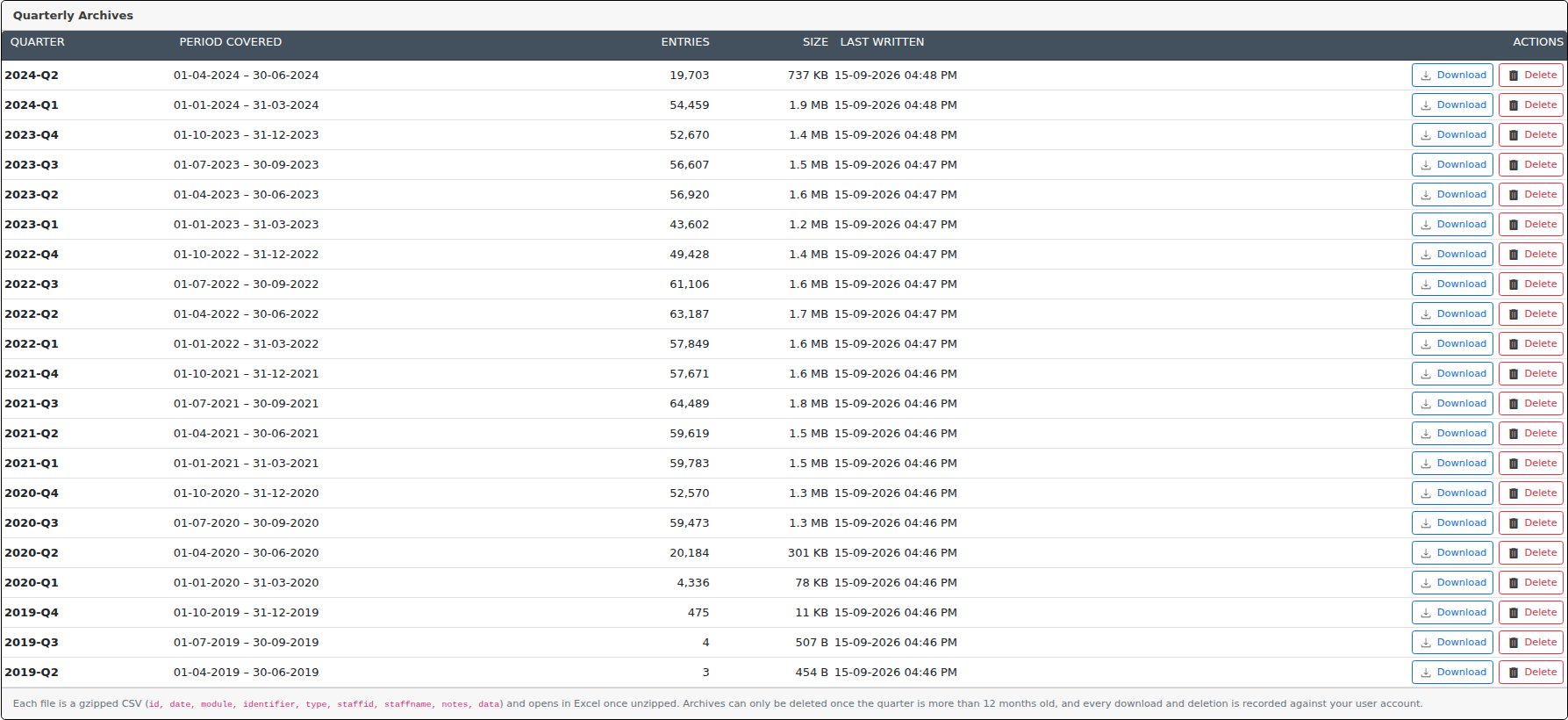
Below that, one row per quarter, newest first, with its size, its row count, when it was last written to, and a Download button.
Opening an Archive
Archives are CSV files compressed with gzip, which is why the name ends in
.csv.gz. That combination was chosen on purpose: CSV can be opened by
anything, and gzip typically takes the file down to well under a tenth of its original
size, which matters when a busy quarter runs to hundreds of thousands of rows.
- Windows — 7-Zip, WinRAR or WinZip will extract the
.csvfrom inside it. Windows 11's built-in extractor handles it too. - macOS — double-click the downloaded file; the CSV appears beside it.
- Excel — extract the CSV first, then open it. Use Data → From Text/CSV rather than double-clicking if you want to stop Excel reformatting dates and long numbers.
The first line of every file is a header row naming the columns, so the file is self-describing years later when nobody remembers what the fourth column was.
Deleting an Archive
An administrator on your site can delete an archived quarter, but only once that quarter is more than twelve months past its end. Until then the row shows Locked until <month> instead of a delete button.
The twelve-month floor exists because deletion is final. There is no restore, no recycle bin and no copy held elsewhere: the file is the only remaining record of that audit history, and once it is gone it cannot be produced again by us or by anyone else. The delay makes it impossible to archive history and destroy it in the same breath.
Downloads are recorded the same way. Deleting an archive also writes an ordinary entry into your own audit log, so it shows up in your normal history as well.
The sensible order is: download the quarter, store it wherever you keep your accounting records, confirm you can open it, and only then delete it.
Reclaiming Disk Space
Archiving removes rows from the audit log, but — and this surprises most people — the database file does not immediately get smaller. The space freed inside it is marked as reusable and will be filled by future audit entries, so the database stops growing, but the figure your hosting reports stays where it was.
Handing that space back to the server requires the audit log table to be rebuilt. That operation locks the table while it runs, which means audit logging pauses and anything that writes a history entry waits — so it is not something to trigger in the middle of a working day.
For that reason Reclaim Space is an Evolution support action, not a button on your screen. Ask support to queue it; it runs on the next overnight cycle, outside business hours, and the amount actually recovered is recorded against your site.
In practice you do not need to rush it. Once the oldest history is archived, the audit log has room to grow into for years without the database getting any larger.
Who Can Do What
| Action | Who |
|---|---|
| View the Archived Logs screen | Any user who can reach the support dashboard |
| Download an archive | Any user who can reach the screen |
| Set the retention period | Administrator (Settings access) |
| Delete an archive | Administrator, and only once the quarter is over twelve months past |
| Reclaim disk space | Evolution support only |
Archive files are not reachable by URL. They sit outside anything the web server will serve, and the only way to get one is through the Download button, which checks who you are first.
What You Give Up
This is a genuine trade, and it is worth being clear about the cost before you turn it on.
- Archived history leaves the application. Once a quarter is archived, those entries no longer appear in History tabs and are no longer found by searching within Evolution. They are in the archive file, complete — but you have to download and open the file to read them.
- A quarter can be archived and still not deletable. Archiving is driven by your retention setting; deletion has its own twelve-month floor. On a 24-month setting you will normally have a handful of archived quarters you cannot yet delete. That is expected.
- The storage figures are up to a day old. Disk usage is measured once a night rather than on every page load, because measuring it properly means walking the whole database and every uploaded file. Directly after an archive run the numbers catch up on the following night's measurement.
Related Pages
- Setting Permissions — granting the administrator access needed to change the retention period.
- Attachments — the other thing that grows your storage over time.