
The HubSpot integration links your Evolution accounts, contacts and opportunities to their equivalents in HubSpot CRM, so your sales and marketing team can work from HubSpot while Evolution stays the system of record for quoting, projects and invoicing. Records sync both ways: changes made in Evolution flow out to HubSpot as they happen, and changes made directly in HubSpot are pulled back into Evolution on a regular schedule.
How Evolution maps to HubSpot
The integration keeps a fixed set of Evolution entities aligned with their HubSpot equivalents. Understanding this mapping makes the rest of the documentation easier to follow.
| Evolution ERP | Direction | HubSpot |
|---|---|---|
| Account | sync_alt | Company |
| Contact (on an account) | sync_alt | Contact |
| Opportunity | sync_alt | Deal |
A Contact is always linked to its account's Company in HubSpot, and a Deal is always linked to both — the same relationships you already see between accounts, contacts and opportunities in Evolution carry straight through.
Connecting HubSpot
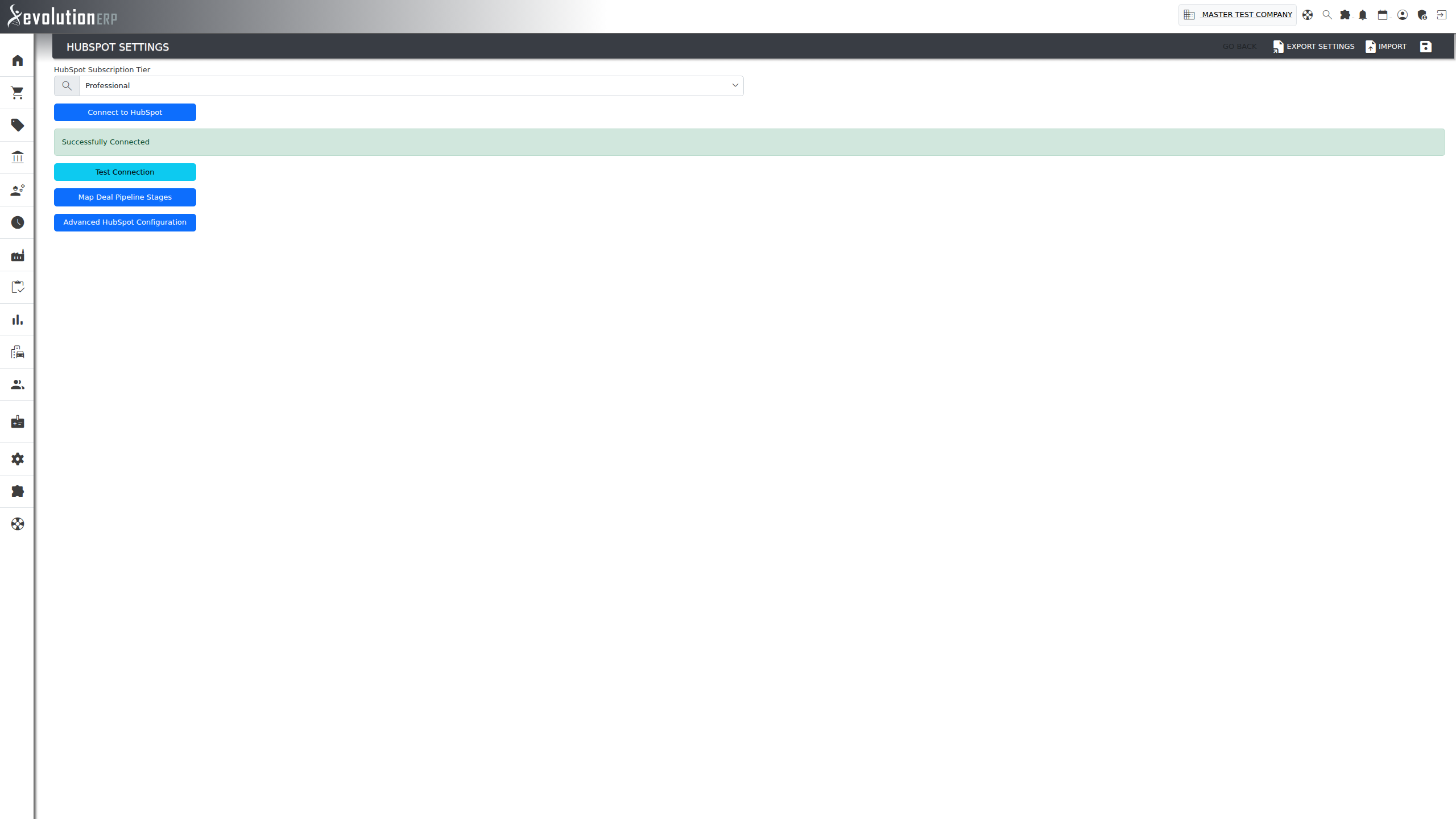
Connecting is an administrator-only, one-off setup step — and that's genuinely all it is. From the Plugins screen, open HubSpot's settings and choose Connect to HubSpot. You'll be taken to HubSpot to log in (if needed) and approve access for your account, then returned to Evolution automatically. The settings screen confirms the connection and which HubSpot account it points to.
There's nothing to create or copy in from HubSpot's side first — no developer account, no app to set up, no Client ID or Secret to track down. Evolution's own HubSpot app handles the connection; you're just authorising your account to use it, the same way connecting Xero already works in Evolution.
Sync modes
Once connected, open Advanced HubSpot Configuration (linked from the main HubSpot settings screen) to choose how each object syncs out to HubSpot. Every object supports two modes:
| Mode | What happens |
|---|---|
| Auto Sync | Every save pushes to HubSpot automatically and silently — no extra clicks, no per-record control. |
| Sync On Demand | Saves do not push automatically. A record still syncs the first time it's tied to a live sales process — see below — or any time via the manual Push to HubSpot button on that record's own HubSpot panel. |
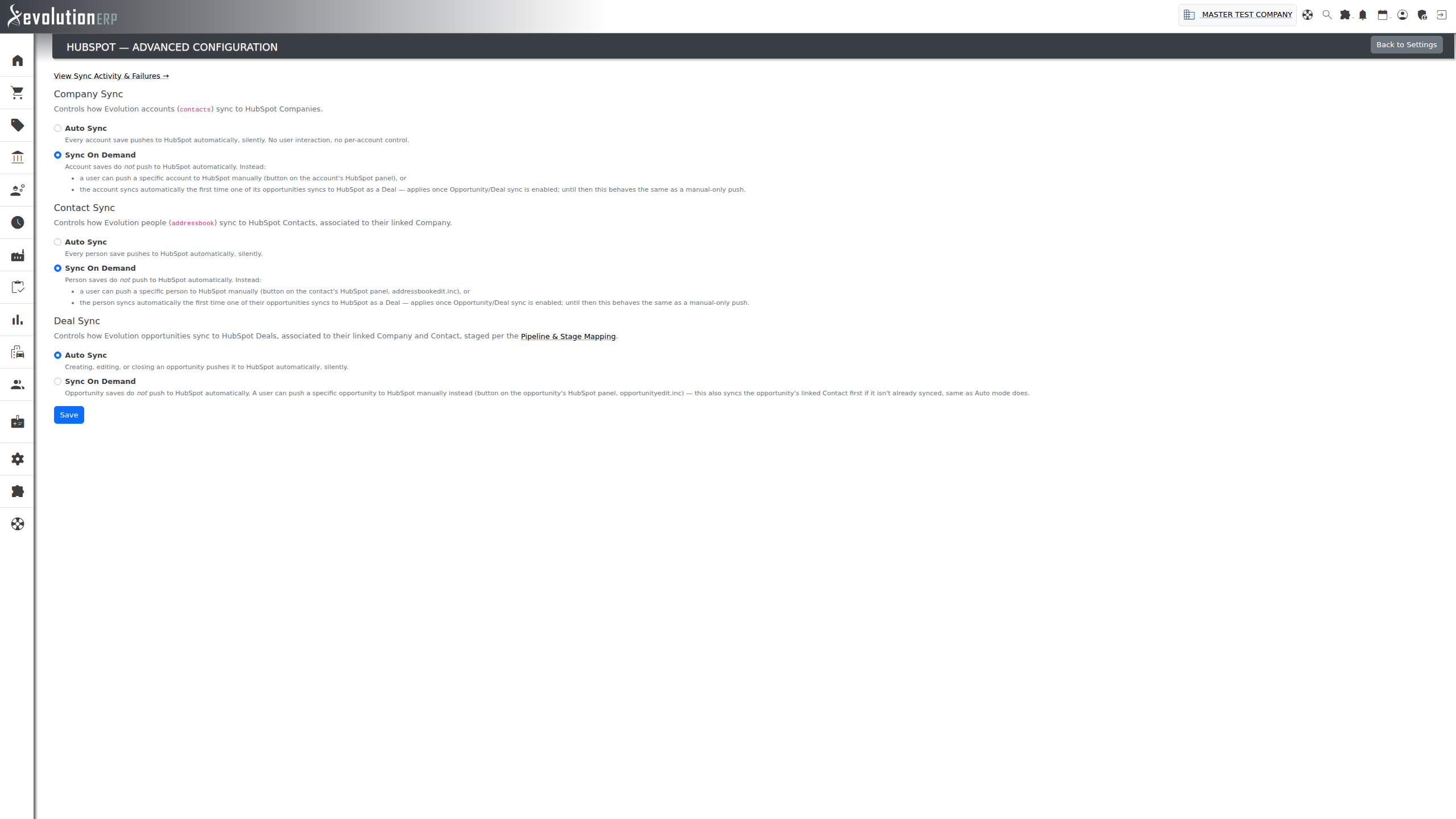
Accounts, Contacts and Deals each have their own mode, set independently — you might, for example, run Accounts on Auto while keeping Deals On Demand until you're ready to hand HubSpot the full pipeline.
The HubSpot panel on an Account
Open any account (Accounts → [account]) and you'll see a HubSpot card above the account's Quick Links. The badge tells you at a glance whether this account is synced:
| Badge | What it means |
|---|---|
| Synced | This account has a matching HubSpot Company. Click the card to see its live HubSpot details and open the record directly. |
| Not Synced | No matching Company yet. On Auto Sync it will sync on the next save; on Sync On Demand, push it manually from the panel. |
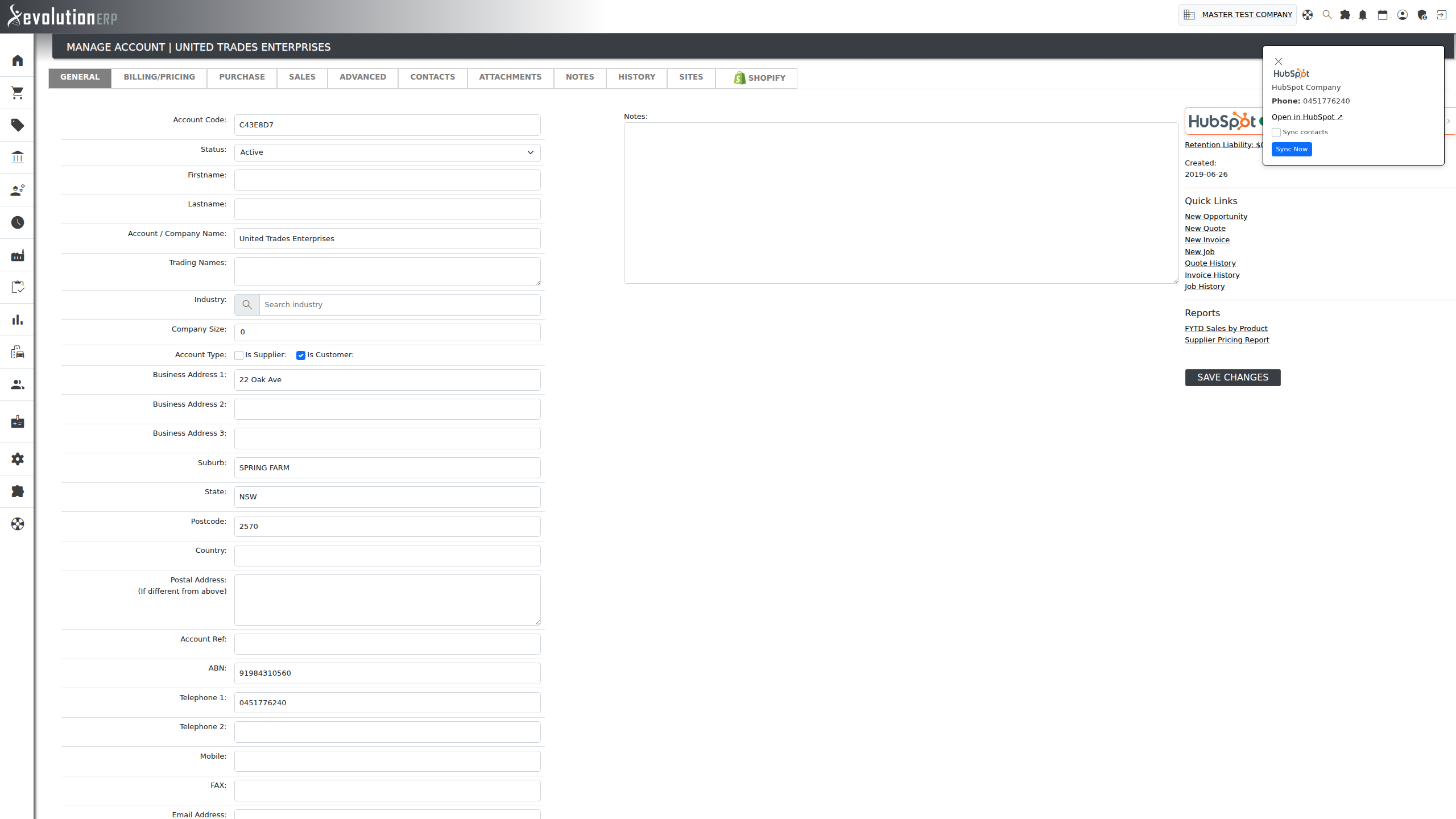
Clicking the card opens a panel with the account's current HubSpot data and a link to open the record in HubSpot. If the account isn't synced yet, or you're on Sync On Demand, a Push to HubSpot button is right there — no need to re-save the account to trigger it.
Syncing contacts along with the account
Pushing an account does not automatically push the people linked to it — Accounts and Contacts sync independently by design, so pushing one never surprises you with a flood of unrelated records on the other side. If you do want everyone on the account sent across at the same time, tick Sync contacts before choosing Push. Evolution pushes the account, then every active contact on it, and confirms how many synced.
The HubSpot panel on a Contact
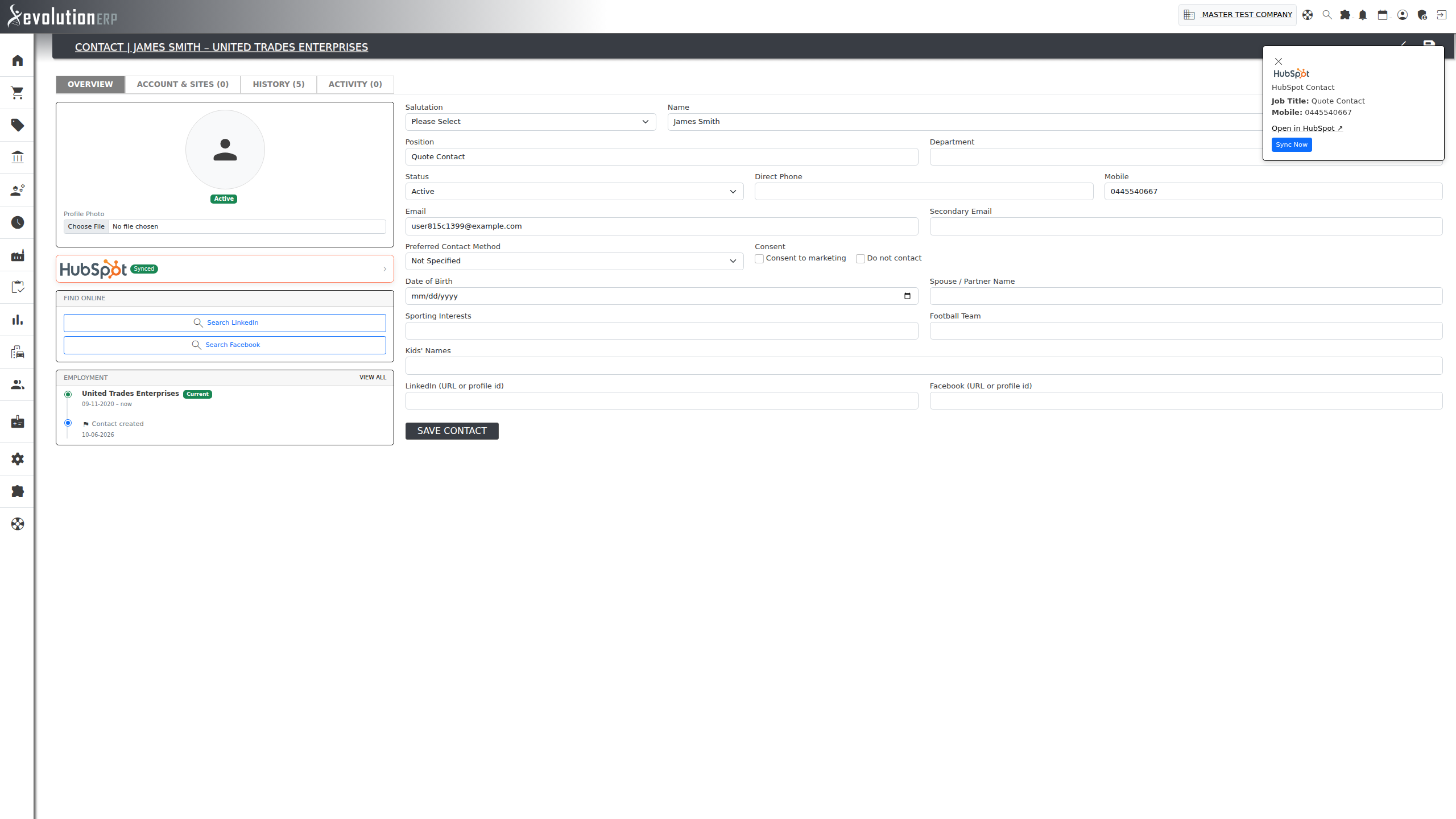
Every person's own page (open a contact from an account's Contacts tab) carries the same HubSpot card, positioned under their profile photo. It works exactly the same way as the account panel — Synced / Not Synced badge, click to see live details (project title, phone, mobile, LinkedIn) and a link to open the record in HubSpot, with a Push to HubSpot button when a manual push is needed.
Deals & pipeline mapping
Opportunities sync to HubSpot as Deals, linked to both the account's Company and the opportunity's Contact. Before Deals will sync, an administrator maps Evolution's fixed opportunity statuses (New, Active, Quote Sent, Overdue, Closed) onto a real HubSpot pipeline and stage, on the Pipeline & Stage Mapping screen (linked from the HubSpot settings page).
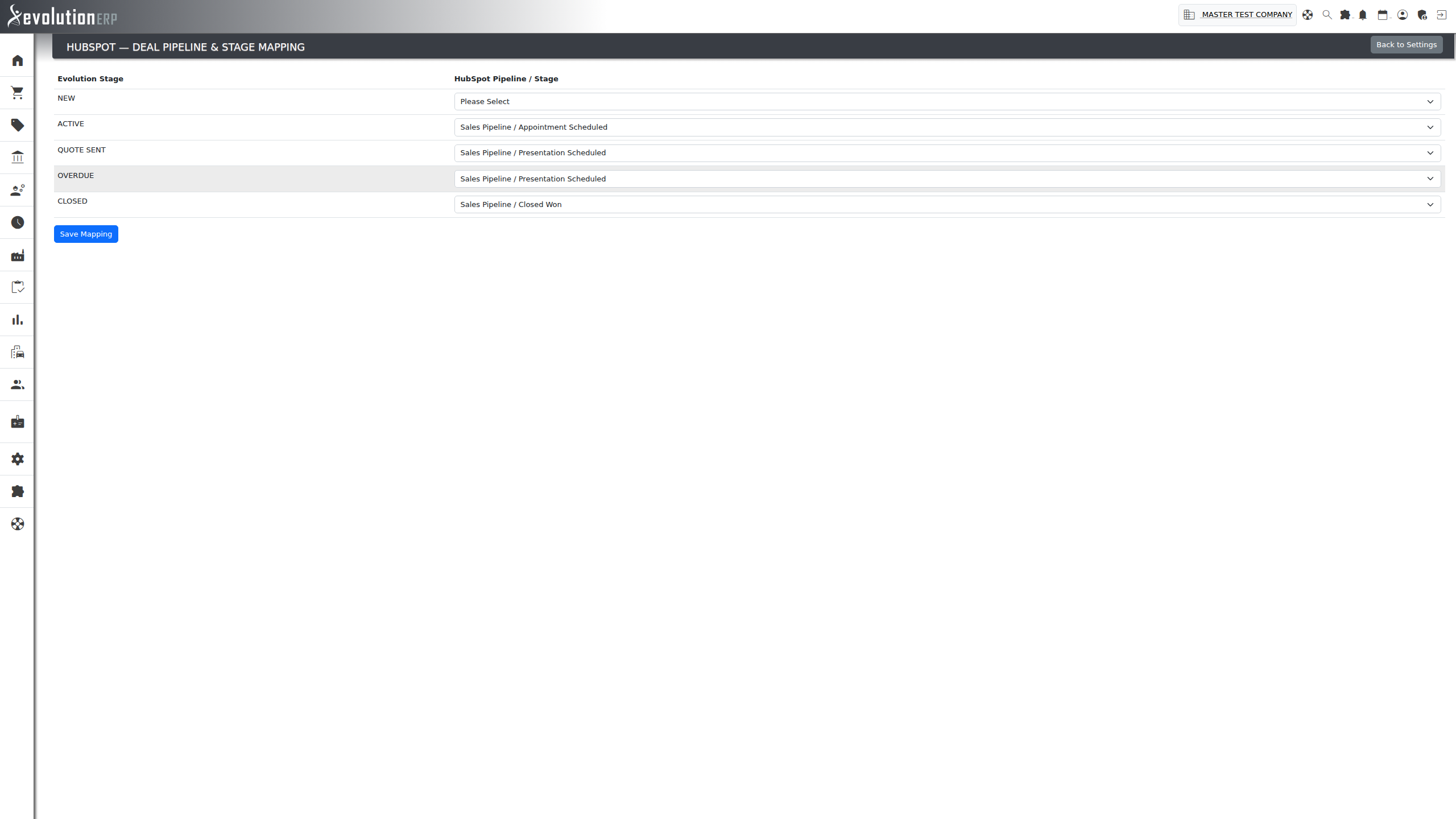
An opportunity syncs to HubSpot whenever it's created, edited, closed, or has a quote marked sent — so the Deal's stage and value stay current with what's actually happening in Evolution. If a status has no configured mapping yet, the Deal still gets its name and value; it just won't have a stage until that status is mapped.
Every opportunity also carries the same HubSpot card as accounts and contacts — Synced / Not Synced badge, click for live Deal Name/Amount/Stage and a link to open the record in HubSpot, with its own Push to HubSpot button for a manual sync.
Keeping HubSpot changes in sync
The sync runs both ways. Changes made directly in HubSpot — updating a Company's industry, a Contact's phone number, a Deal's value — are pulled back into Evolution on a regular schedule, so the two systems don't drift apart even if someone edits a record from the HubSpot side. There's nothing to trigger yourself; this happens automatically in the background.
Sync Activity & failures
The Sync Activity screen (linked from Advanced HubSpot Configuration) is the fastest way to see what's actually happened — every push and pull attempt is logged there, success or failure, with how many times it was retried and, for a failure, HubSpot's own error message. A banner at the top counts failures in the last 24 hours, and a Show failures only filter narrows the list down when you're chasing a specific problem. Each row links straight back to the account, contact or opportunity it belongs to.
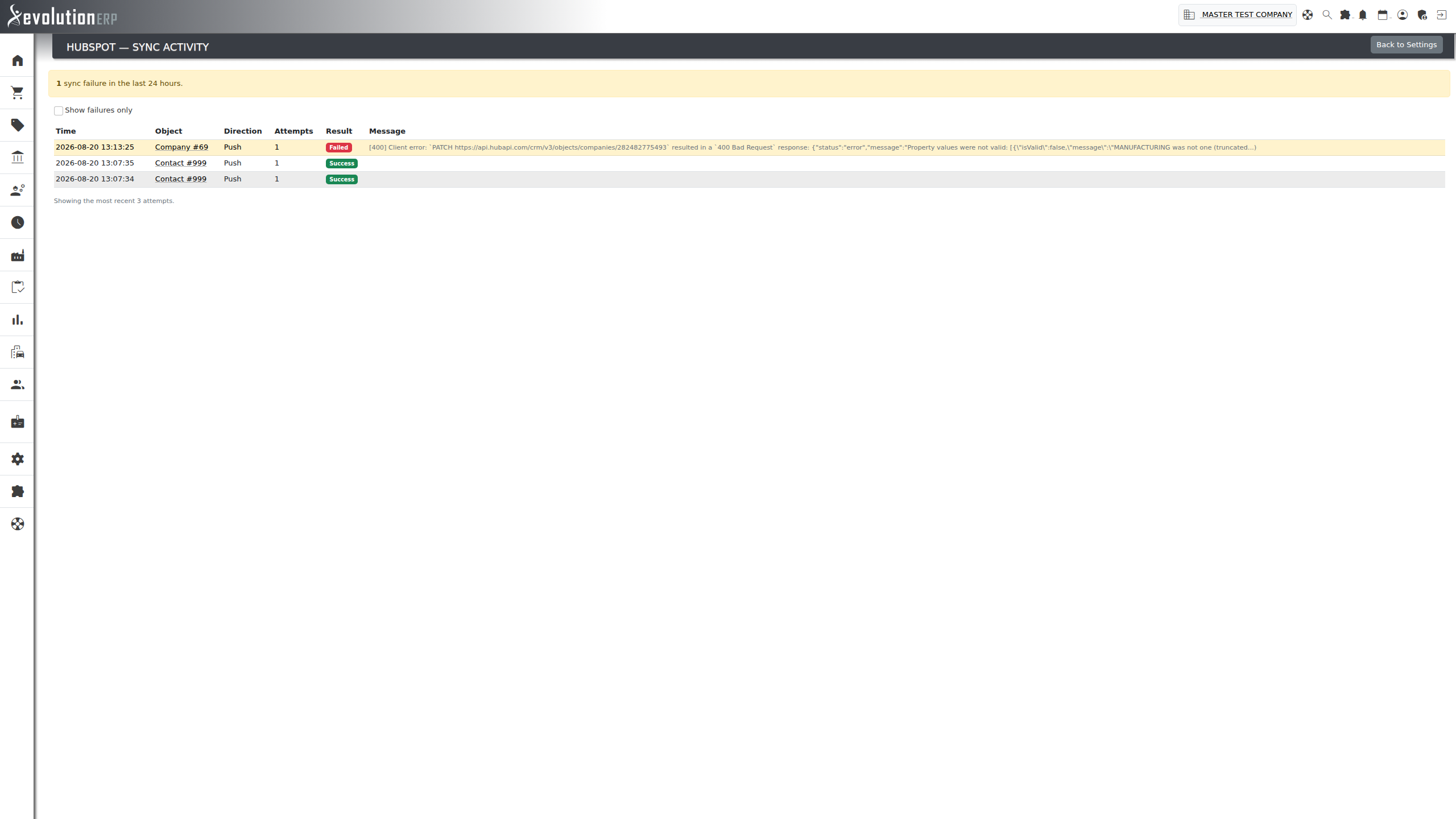
A failed attempt is retried automatically when it looks temporary — HubSpot asking Evolution to slow down, or a brief server hiccup on HubSpot's end — so most transient issues clear up on their own before they ever show as a failure here. What you'll see logged as Failed is the kind that needs a person to look at it: bad data (like an Industry value HubSpot doesn't recognise), a broken connection, or something similar that retrying the same request won't fix.
If something isn't syncing
- Open Sync Activity first — it will usually tell you exactly what happened and to which record, including HubSpot's own error message if the push was rejected.
- Check the HubSpot settings screen shows the connection as active — a disconnected integration (for example, if access was revoked in HubSpot) stops every sync silently until it's reconnected.
- Check the sync mode for that object on Advanced HubSpot Configuration — on Sync On Demand, a record only syncs when pushed manually or tied to a Deal, not on every save.
- Open the record's HubSpot panel and check the badge. Not Synced with a Push button available means it simply hasn't been sent yet.
- For Deals, confirm the opportunity's status has a pipeline/stage configured on Pipeline & Stage Mapping — an unmapped status still creates the Deal, just without a stage.
Still stuck after checking all five? Contact support with the account, contact or opportunity name and roughly when you expected it to sync.