
Where to Find Them
Menu → Reports → Reports Dashboard, then the Qualifications pill.
These reports require Sales / CRM access at the admin (full) level, or administrator access — if you don't see them, contact your administrator.
This section reports across the Qualifications module (Menu → Contacts → Qualifications), where each staff member or contractor is assigned the tickets, licences, inductions and certifications they hold, along with the date they were issued and when they expire. The reports below turn those holdings into the questions a compliance manager actually asks: what is about to lapse, what has already lapsed, who holds what, what is missing its paperwork, and how much renewal work is coming?
A Note on Expiry Dates
Some qualifications never expire (a one-off induction, a lifetime licence). These are stored without a real expiry date and are treated as non-expiring:
- They are excluded from the Expiring and Expired reports — a qualification with no expiry can neither be expiring nor expired.
- In the Qualification Matrix they always show as valid (green), labelled "No expiry".
Only active holdings are reported — qualifications that have been removed from a person, or people who are no longer active staff/contractors, are excluded automatically.
Expiry & Renewal
What needs renewing, and what has already slipped through?
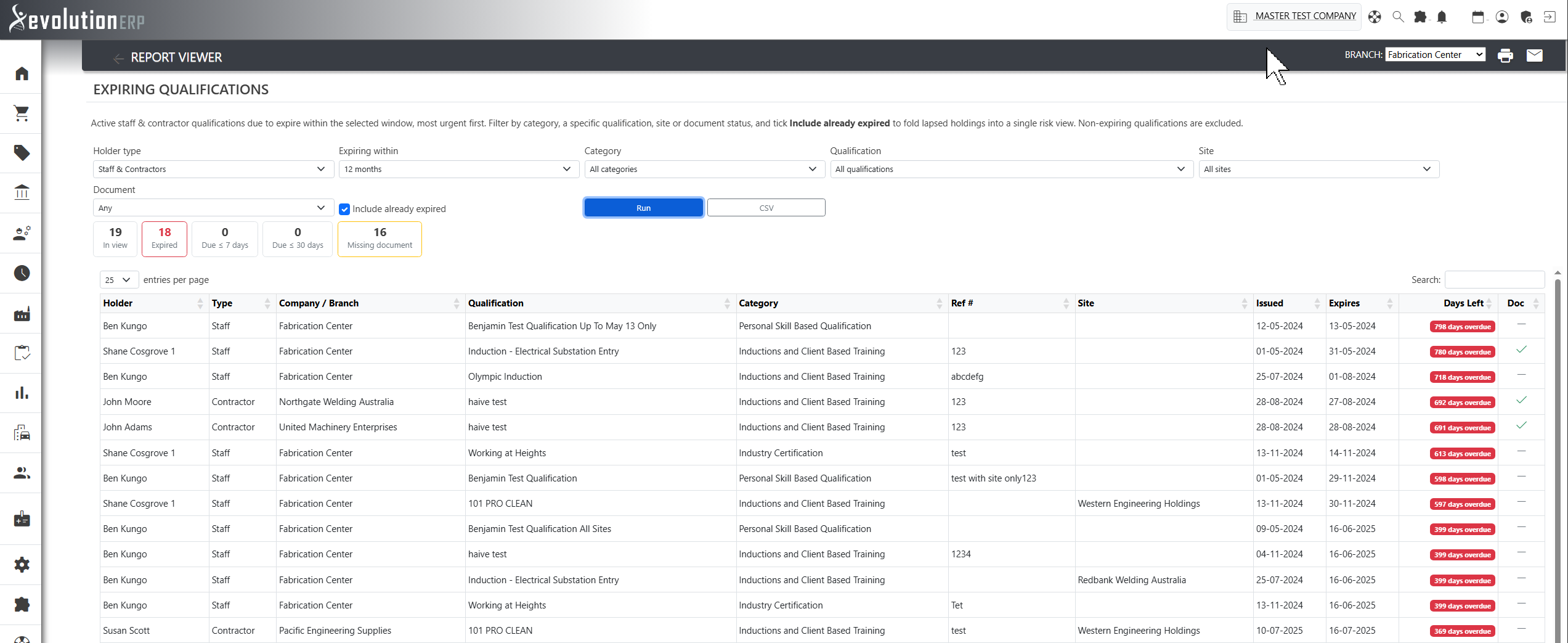
Expiring Qualifications
What it shows: Every active staff and contractor qualification due to expire within a chosen window, sorted most-urgent first. Each row shows the holder, the qualification and its category, the reference / licence number, the site it applies to, the issue and expiry dates, the days remaining, and whether a supporting document has been uploaded. The Days Left badge is colour-graded — red within 7 days, amber within 30, green beyond that.
How to use it:
- Set Holder type to look at staff, contractors, or both together.
- Choose the Expiring within window — 30 / 60 / 90 days, 6 months or 12 months.
- Use the Doc column to spot qualifications that are renewing but have no evidence on file.
- Click CSV to hand the renewal list to whoever books the training.
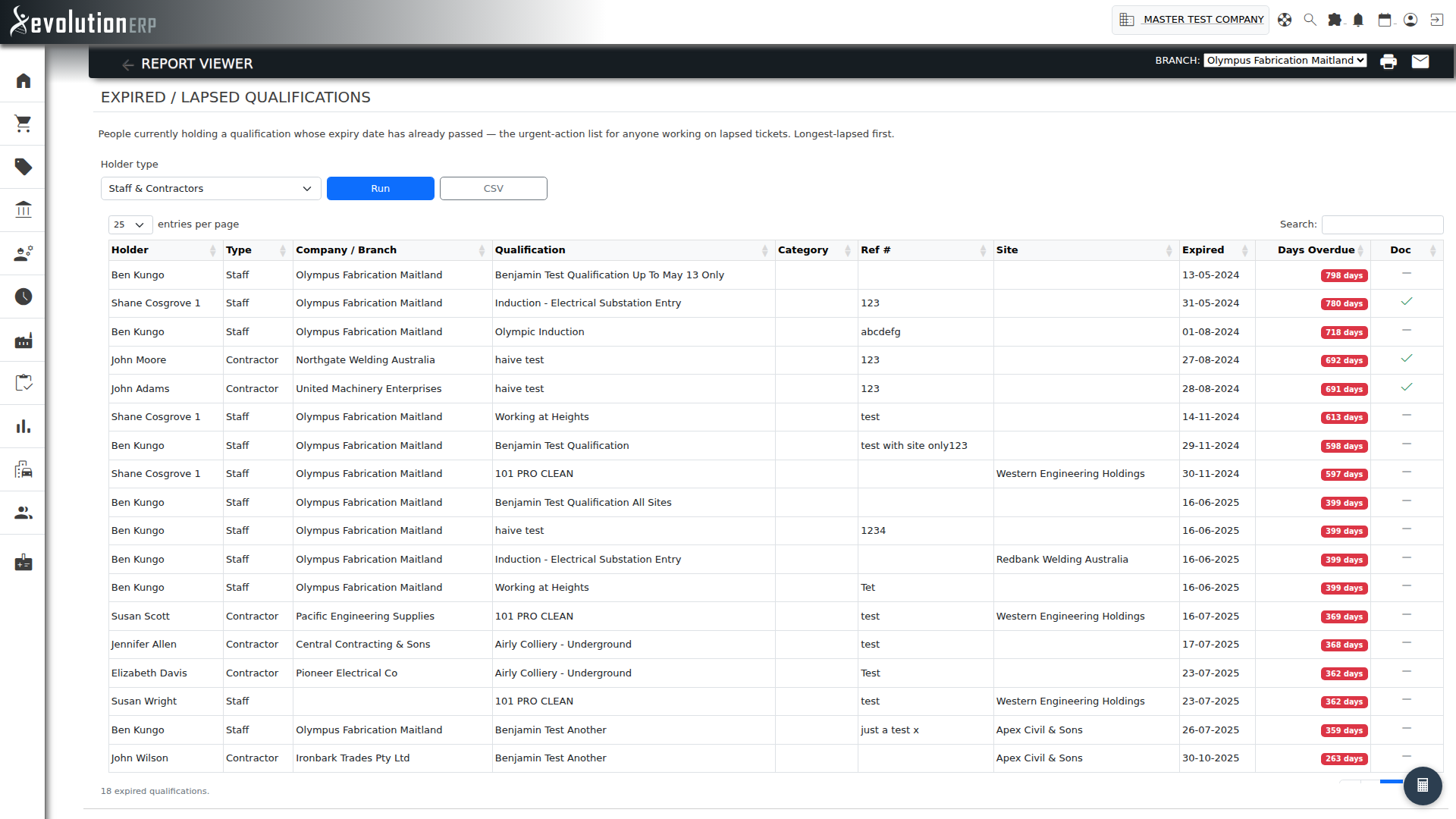
Expired / Lapsed Qualifications
What it shows: People who are currently holding a qualification whose expiry date has already passed — in other words, anyone who may be working on a lapsed ticket right now. Rows are sorted longest-lapsed first, with a red Days Overdue badge.
How to use it: This is the urgent-action list. Filter by holder type, work the list from the top (most overdue), and export to CSV to chase renewals. An empty report is the goal — it means everyone is current.
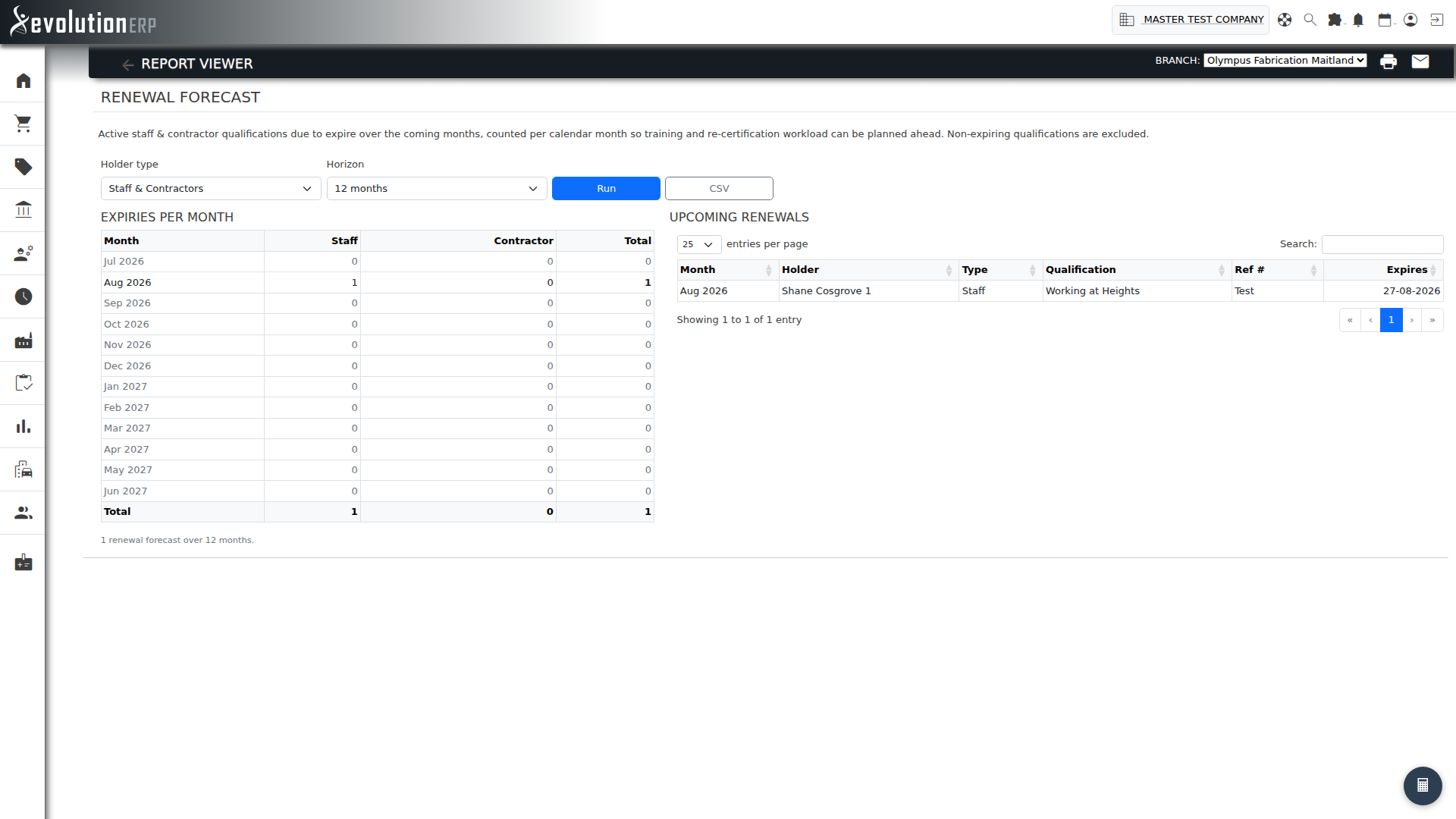
Renewal Forecast
What it shows: Where Expiring answers "what is due in the next few weeks", the Renewal Forecast looks further out and groups upcoming expiries by calendar month. The left-hand table counts how many qualifications fall due each month (split staff vs contractor); the right-hand list is the detail behind those counts. It is the workload-planning view — how much training and re-certification is coming, and when.
How to use it:
- Set the Horizon to look 6, 12, 18 or 24 months ahead.
- Read the monthly counts to spot the heavy months and book trainers before the crunch.
- Filter by Holder type to plan staff and contractor renewals separately.
- The CSV export is the month-by-month summary — ideal for a training budget or calendar.
The forecast looks forward only — qualifications that have already expired are not shown here (use Expired / Lapsed for those). Non-expiring qualifications are also excluded.
Compliance & Coverage
Who holds what, across the whole team?
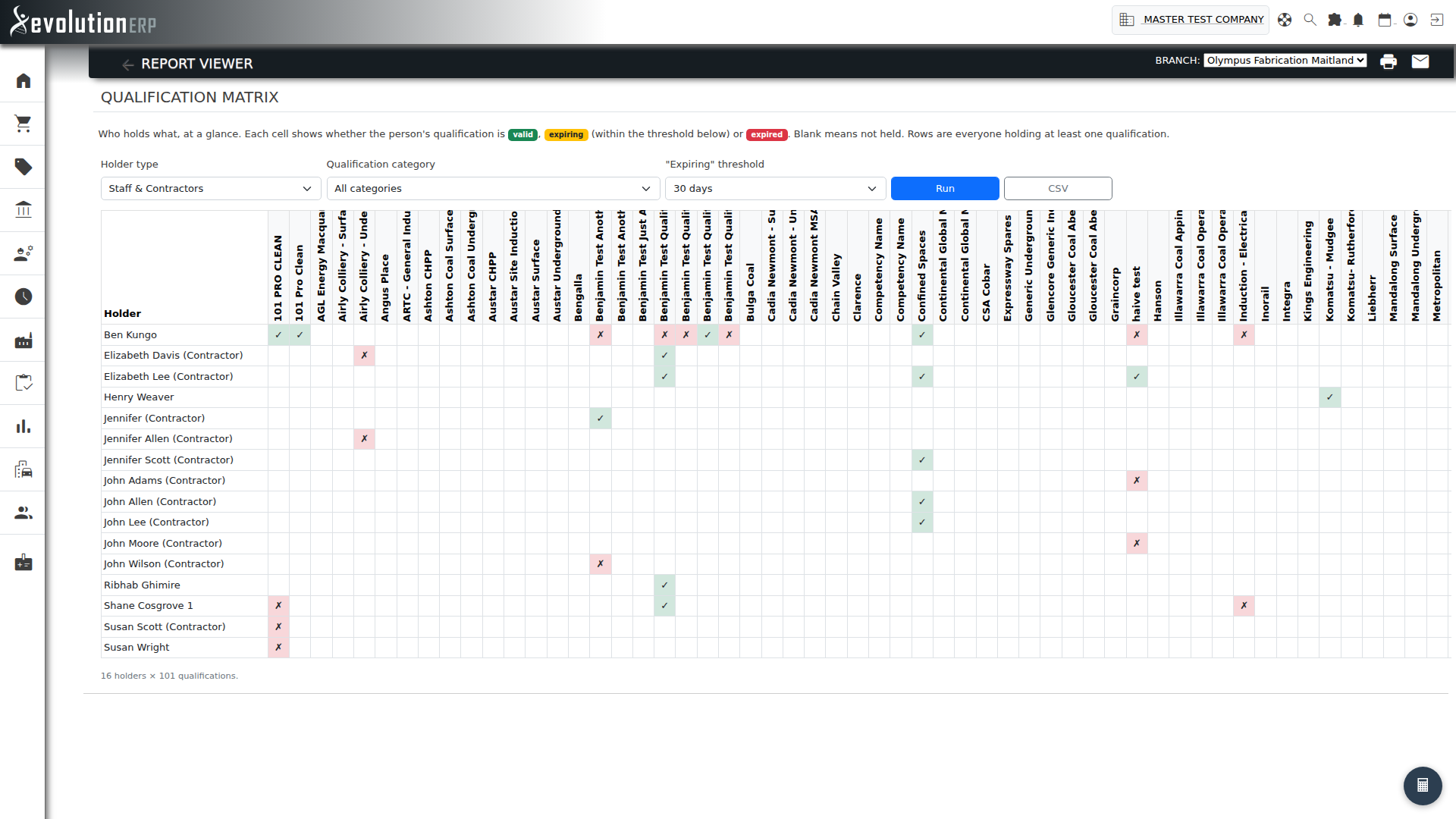
Qualification Matrix
What it shows: A grid with one row per person and one column per qualification. Each cell tells you the status of that person's qualification at a glance:
- Valid — held and current (or non-expiring).
- Expiring — held, but due to expire within the threshold you set.
- Expired — held, but already lapsed.
- Blank — the person does not hold that qualification.
How to use it:
- Set Holder type to staff, contractors or both.
- Filter by Qualification category to focus on a single family (e.g. just licences, or just inductions) and keep the grid readable.
- Adjust the "Expiring" threshold to control how far ahead an amber cell looks.
- Hover over any cell to see the exact expiry date.
- Rows are everyone who holds at least one qualification. If a person holds more than one copy of the same qualification, the cell shows the best status — a current renewal outranks an older lapsed one.
- Click CSV for a flat export (one row per person, one column per qualification) that drops neatly into a compliance spreadsheet.
Missing Evidence / Documents
What it shows: Some qualifications are configured to require a supporting document — a scanned licence, a certificate, a signed induction. This report lists every active holding that requires a document but has none attached. It is the audit-evidence gap list: the holdings that would fail a spot check even though the date looks fine.
How to use it:
- Filter by Holder type to chase staff or contractor evidence separately.
- The Status column flags holdings that are Expired as well as undocumented — deal with those first, they fail on two counts.
- The Required By column tells you whether the document is demanded by the qualification itself or by its type, so you know where the rule comes from.
- Upload the missing file against the holding in Qualifications, and the row drops off the report.
An empty report means every qualification that needs evidence has it on file.
Analysis & Data Quality
How is compliance trending, and where are the hours going?
Holdings by Type / Category
What it shows: A roll-up of every active holding grouped by qualification type and category, with each group broken down into Valid, Expiring and Expired counts. It answers "which families of qualifications are healthy, and which are slipping?" without naming individuals.
How to use it:
- Filter by Holder type to compare staff and contractor coverage.
- Adjust the "Expiring" threshold to decide how far ahead a holding counts as expiring rather than valid.
- Read the Total row at the foot for the whole-of-organisation position.
- A type with a high Expired count is a renewal process that needs attention — drill into it with the Expired or Matrix reports.
Logged Hours / CPD
What it shows: For qualifications that accrue hours — continuing professional development, supervised hours, training time — this report shows the hours logged against each holding. Logged is the sum of the individual recorded sessions; Recorded is the running total stored on the holding; Sessions is how many entries make up the logged figure. Rows are sorted by logged hours, highest first.
How to use it:
- Filter by Holder type to focus on staff or contractors.
- By default only holdings that have accrued hours are shown — either logged sessions or a recorded running total. Tick Include holdings with no hours to see qualifications that should be accruing hours but aren't yet.
- A gap between Logged and Recorded can flag hours recorded outside the normal sessions — worth a look if the two should always match.
- Export to CSV for CPD records or audit submissions.
Tips
- Run Expired / Lapsed first — it is the report with real risk attached. Then use Expiring to get ahead of the next wave of renewals, and Renewal Forecast to plan the months beyond that.
- Use Missing Evidence / Documents before an audit — a current date with no certificate on file is still a gap.
- The Qualification Matrix is the one to take into a management or audit meeting — it shows coverage and gaps for the whole team on a single screen, while Holdings by Type / Category gives the same picture as headline numbers.
- If a qualification you expect to see is missing from the Matrix columns, check it is still active in Qualifications (Contacts → Qualifications) and that it matches the selected type filter.
- Every report includes a CSV download so the data can be shared with people who don't have access to Evolution.