
Email Sending Domains & SPF Records
Evolution ERP can send email — quotes, invoices, purchase orders and statements — so that it appears to come from your own company domain. For that mail to be delivered rather than rejected or sent to spam, your domain must publish an SPF record that authorises Evolution’s mail servers to send on your behalf.
What is an SPF record?
SPF (Sender Policy Framework) is a DNS record published against your domain that lists
which mail servers are allowed to send email using your domain in the “From” address.
When a receiving mail server (Gmail, Outlook, etc.) gets a message claiming to be from
you@yourcompany.com, it checks your SPF record. If the sending server is listed, the
message passes; if it is not, the message may be marked as spam or rejected outright.
Step 1 — Set your sending domain in Evolution
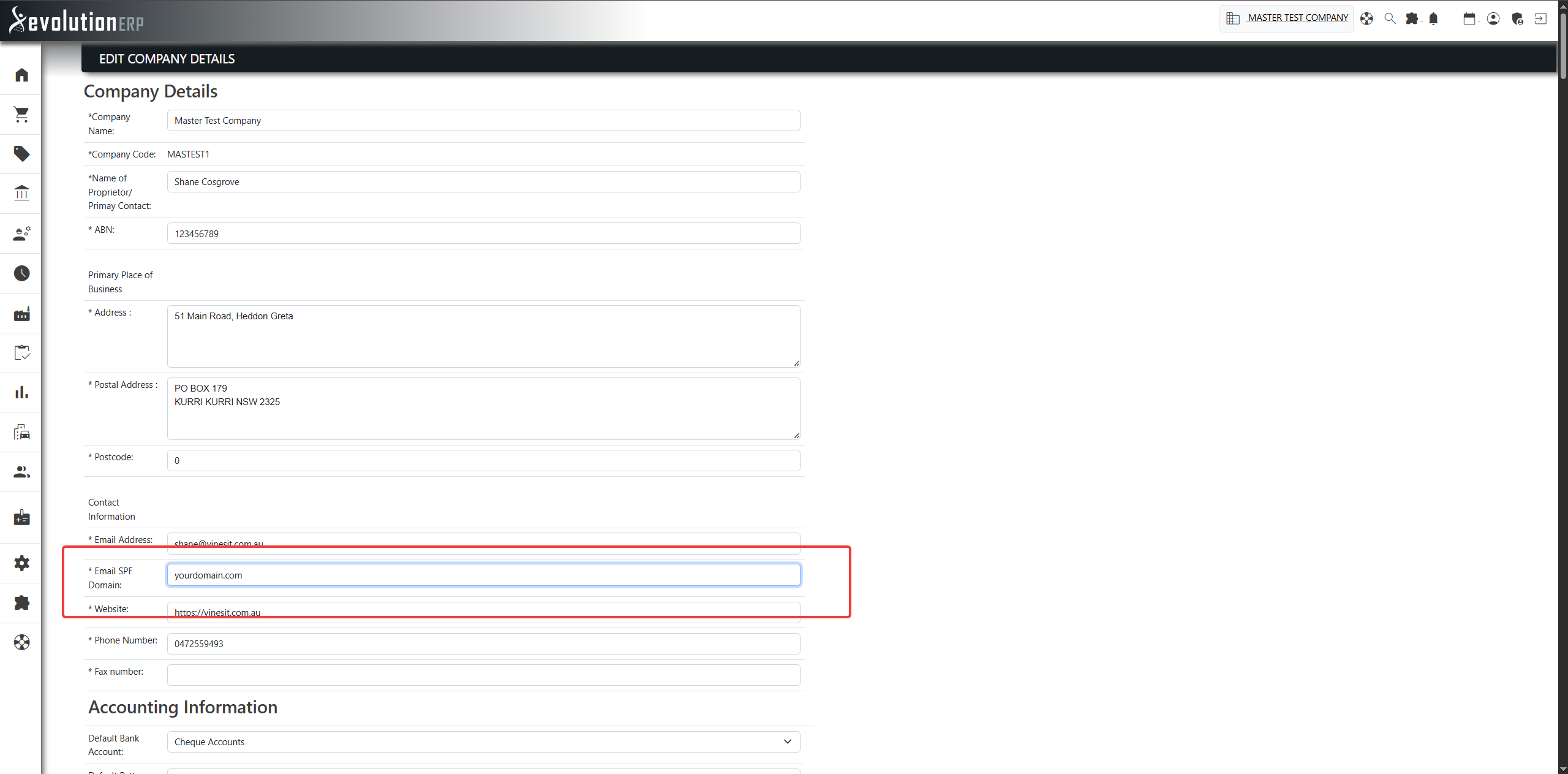
The domain Evolution sends from is configured on your company record. Open the company settings and enter your domain in the Email SPF Domain field:
Enter the bare domain part of your email address — for example, if your staff send from
sales@yourcompany.com, enter yourcompany.com. This tells Evolution which
domain to send as, and is the domain on which the SPF record described below must be published.
Step 2 — Add the SPF record to your domain
Your SPF record is published as a TXT record in your domain’s DNS, usually managed through your domain registrar or IT provider. To allow Evolution to send email, your SPF record must include:
| Include | Purpose |
|---|---|
include:smtp.evolutionerp.com.au |
Authorises Evolution ERP’s mail servers to send email from your domain. |
If you also send email from another mail service — most commonly Microsoft Outlook / Office 365 — that service must be included in the same, single SPF record. A domain may only have one SPF record; you do not add a second one, you list every authorised sender inside the one record.
v=spf1) TXT records on the same domain — this is invalid
and will cause SPF to fail. If you already have an SPF record, add the Evolution
include to it rather than creating a new one.
Sample SPF record
The example below is for the domain test.com, sending email through both
Microsoft Outlook / Office 365 and Evolution ERP:
| Type | TXT |
|---|---|
| Host / Name | test.com (the root of the domain — some registrars use @) |
| Value | v=spf1 include:spf.protection.outlook.com include:smtp.evolutionerp.com.au -all |
Reading the record from left to right:
| Part | Meaning |
|---|---|
v=spf1 |
Identifies this as an SPF version 1 record. Every SPF record must start with this. |
include:spf.protection.outlook.com |
Authorises Microsoft Outlook / Office 365 to send mail for the domain. |
include:smtp.evolutionerp.com.au |
Authorises Evolution ERP to send mail for the domain. |
-all |
Any server not listed above is not authorised, and its mail should be rejected
(a “hard fail”). If you would prefer such mail to be accepted but marked as
suspicious (a “soft fail”) while you confirm everything is working, use
~all instead.
|
v=spf1 include:smtp.evolutionerp.com.au -all
Step 3 — Test and view your SPF record
After publishing the record, confirm it is correct using one of the free tools below. Enter your
domain (for example test.com) and the tool will show your current SPF record and flag
any problems.
MXToolbox SPF Check
Enter your domain and MXToolbox displays your published SPF record, breaks down each part, and lists any warnings or errors (such as too many lookups or multiple SPF records).
mxtoolbox.com/spf.aspx open_in_newdmarcian SPF Surveyor
A visual alternative that draws your SPF record as a diagram, making it easy to see every authorised sender (Office 365, Evolution, and any others) at a glance.
dmarcian.com/spf-survey open_in_new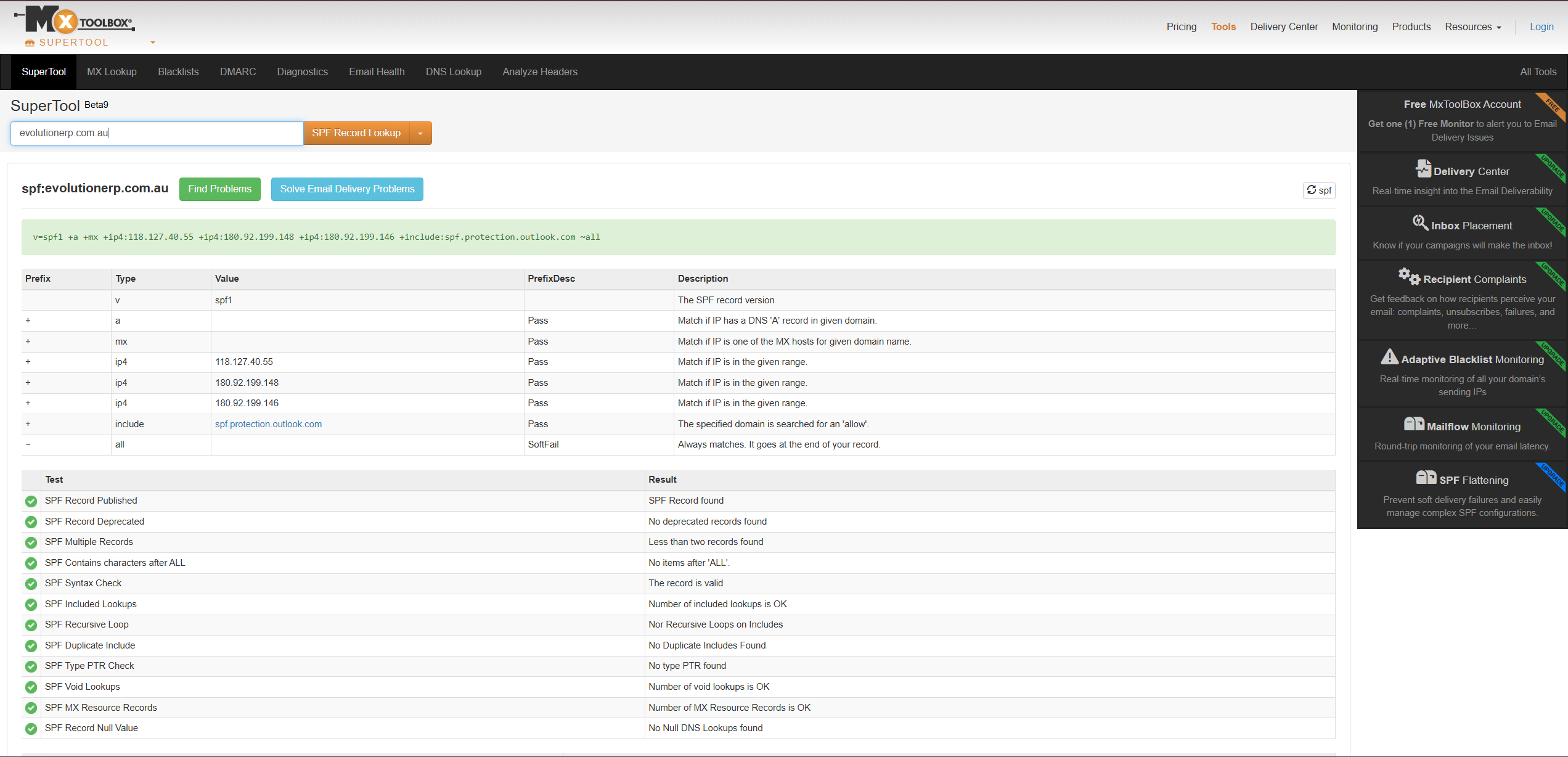
A correct result will show your record with both include:spf.protection.outlook.com and
include:smtp.evolutionerp.com.au present, and no errors reported.
Troubleshooting
| Symptom | Likely cause & fix |
|---|---|
| Email from Evolution goes to recipients’ junk / spam. | The Evolution include is missing from your SPF record. Add
include:smtp.evolutionerp.com.au. |
| Testing tool reports “more than one SPF record”. | Combine all authorised senders into a single v=spf1 record and remove the extras. |
| Office 365 mail stopped working after adding Evolution. | You likely replaced the Outlook include instead of adding to it. Keep
include:spf.protection.outlook.com in the same record. |
| Changes not showing in the test tool. | DNS can take time to propagate — wait a few hours and test again. |
Support
If you are unsure how to edit your DNS records, your domain registrar or IT provider can add the SPF record for you — simply give them the record value above. For help with the sending domain setting in Evolution, please contact Evolution ERP Support.