
Active Users
Settings → Active Users answers two questions that are easy to confuse: who is using Evolution at this moment, and how many user licences this company currently holds. They are different numbers, and the screen deliberately shows them side by side rather than merging them into one figure.
What It Shows
Five figures sit across the top of the screen:
| Figure | Meaning |
|---|---|
| Licensed Users | How many user licences are currently allocated to this company. This is what you are billed for. |
| Signed In Now | How many different people have a live session open. Someone signed in twice still counts as one person. |
| Multiple Sessions | How many people are signed in from more than one place at once — for example a desktop and a laptop, or a shared login being used by two people. |
| Dormant | Licensed users who have not signed in for 90 days, or who have never signed in at all. |
| Not Usable | Licences allocated to an account that has been switched off or has no staff record — a licence nobody can actually use. |
Signed In Now
The first tab lists every live session: who it belongs to, when they signed in, when they were last doing something, the IP address they are connecting from and the browser and operating system in use.
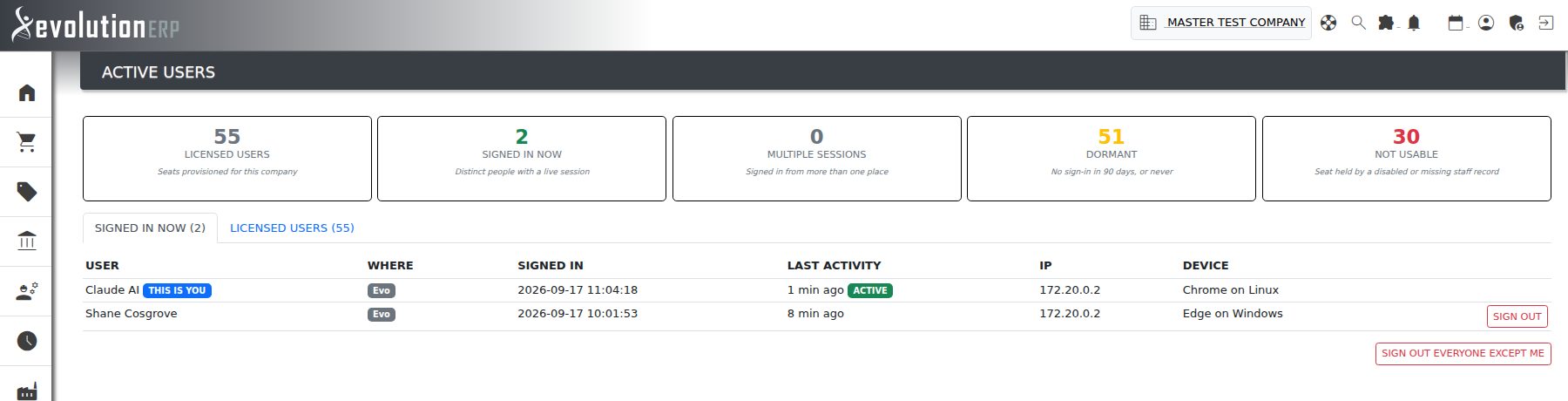
- Active means they have done something in the last five minutes. Without it, the session is still open but idle.
- Your own session is labelled THIS IS YOU. Use Log Out in the top bar to end it.
- A row highlighted in amber with a 2 SESSIONS badge means that person is signed in from more than one place. That is usually a second device left logged in, but it can also mean a login is being shared.
Signing Someone Out
Sign Out on a row ends that one session. Sign Out Everyone Except Me ends every session in the company other than your own.
The person is returned to the login screen within about 15 seconds — not instantly. They can sign straight back in; signing someone out does not disable their account. To stop someone logging in at all, set their staff record to inactive instead.
You can only sign out sessions belonging to your own company, and only your own session cannot be ended this way.
Licensed Users
The second tab lists every user licence allocated to this company, whether or not that person is signed in. This is the list to review when you want to know what you are paying for.
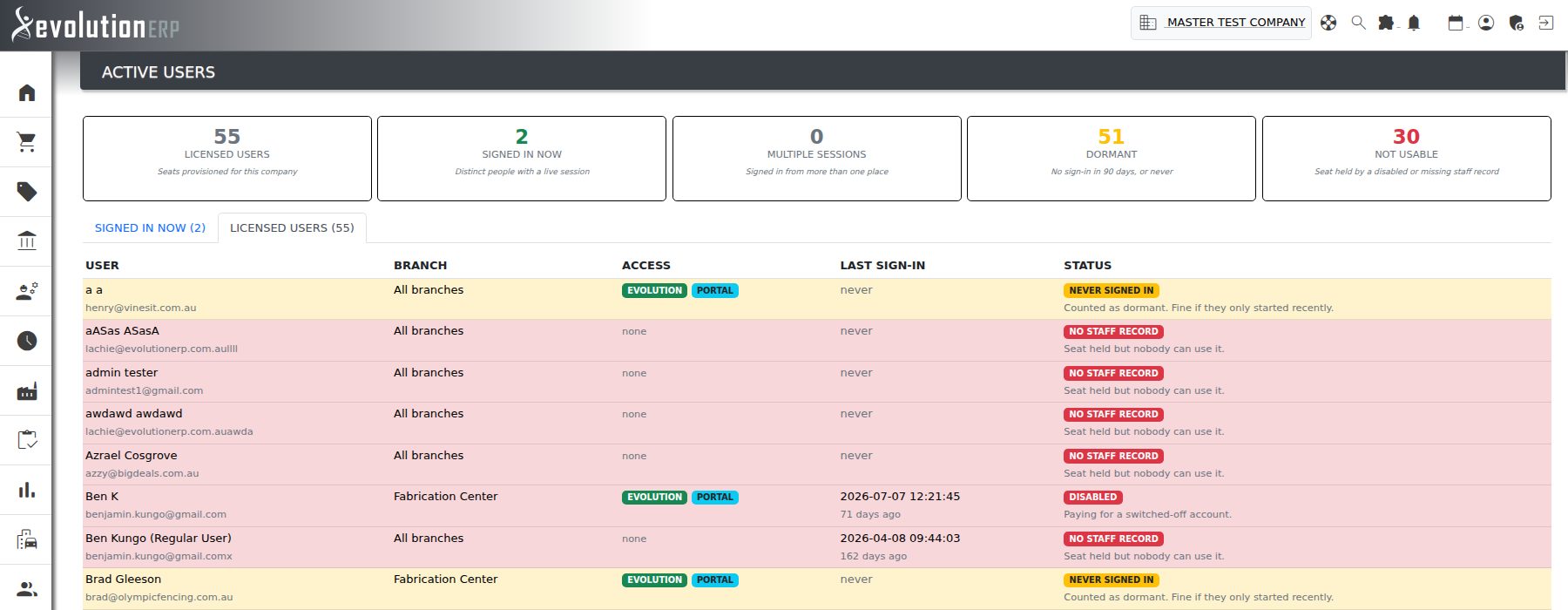
Access shows what each person is set up to use — Evolution, the Portal, or both. Last Sign-In is the last time they logged in to Evolution anywhere, not only into this company.
What Each Status Means
| Status | Meaning | What to do |
|---|---|---|
| OK | An active user who is signing in and using the system. | Nothing. |
| NEVER SIGNED IN | A licence has been allocated but the person has never once logged in. | Expected for someone who started this week. Otherwise, remove the licence. |
| DORMANT | No sign-in for 90 days or more. | Check whether they still need access. |
| DISABLED | The licence is allocated to an account that has been switched off. | Remove the licence — nobody can use it. |
| NO STAFF RECORD | The licence is allocated to someone who has no staff record in this company. | Usually left over from a staff member who was deleted rather than deactivated. Remove the licence. |
Licences are added and removed on the staff record, under Contacts → Manage Staff, using the Evolution Access setting. See Setting Permissions.
Staff Without a Licence
Below the licence list, the screen shows the reverse case: active staff who are marked as having Evolution access on their staff record but hold no licence. This table is usually empty. When it is not, those people will have trouble signing in, and it is worth resolving either by allocating a licence or by turning Evolution access off on the staff record.
Who Can See It
Access is controlled by the Active Users permission on each staff record, alongside the other module permissions:
- Not Allowed — the screen and its menu entry are hidden.
- Allowed — can see who is signed in and review licences, but cannot sign anyone out.
- Admin — can also sign people out.
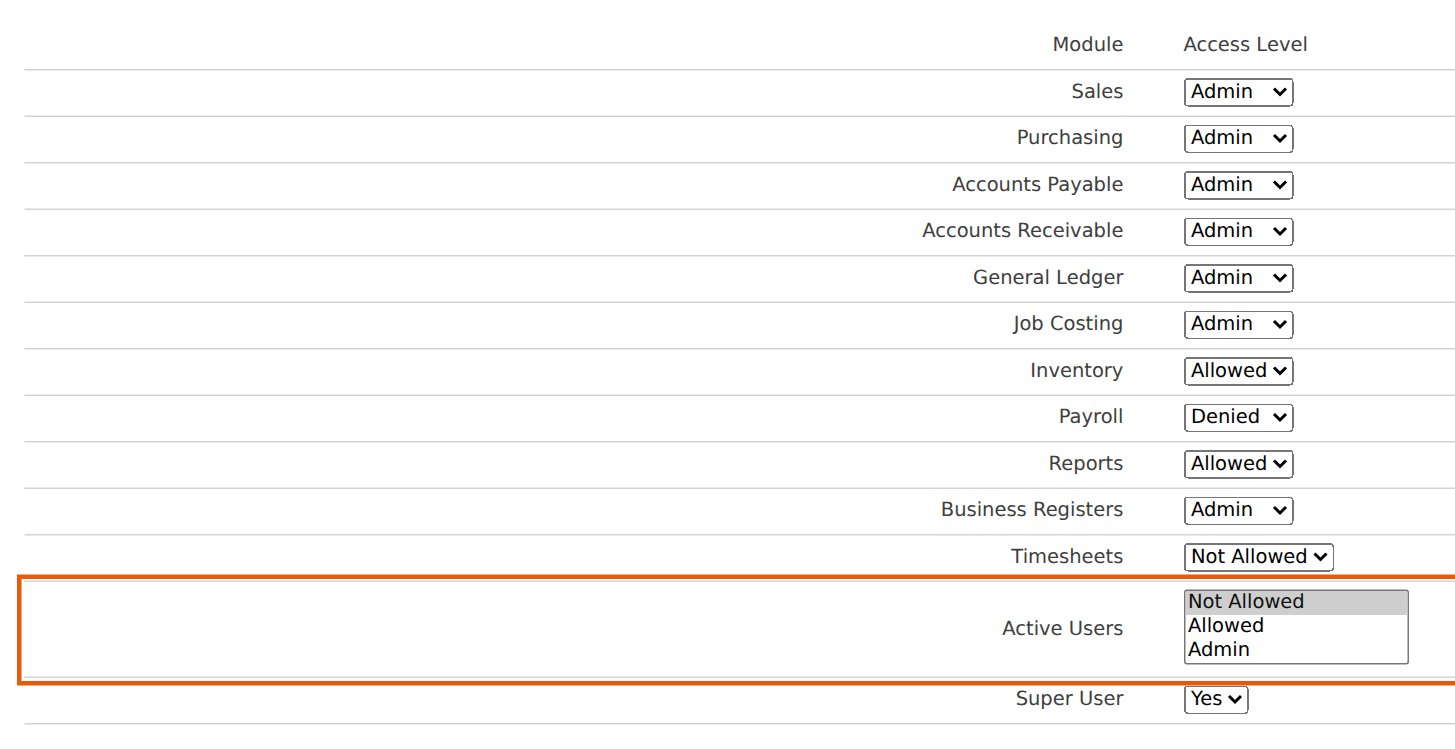
Super Users always have the Admin level here, whatever the permission is set to. Everyone else starts at Not Allowed until you grant it.
Support
If a figure on this screen does not match what you expect — particularly a licence count that looks wrong on your invoice — contact support@evolutionerp.com.au with a screenshot of the Licensed Users tab.